The post Kraken Review appeared first on Business For AI Guide.
]]>Kraken is one of the oldest and most reputable cryptocurrency exchanges globally. Founded in 2011 and officially launched in 2013, Kraken has earned a reputation for strong security, a great selection of cryptocurrencies, and advanced trading features suitable for both individuals and institutions. With support for hundreds of cryptocurrencies and a wide array of fiat options, Kraken is a comprehensive platform for buying, selling, and staking digital assets.
Kraken overview
| Feature | Details |
|---|---|
| Founded | 2011 |
| Headquarters | San Francisco, California |
| Cryptocurrencies | 410+ |
| Fiat currencies | USD, EUR, GBP, JPY, CAD, AUD, and CHF |
| Trading fees | 0%–0.4% (maker-taker model) |
| Staking? | Yes (varies by region) |
| Margin & futures? | Yes, up to 5x (margin), 50x (futures) |
| Regulated? | Globally licensed and FinCEN-registered |
| Valuation | $10 billion (private) |
| Mobile app? | iOS and Android |
Kraken pros and cons
| Pros | Cons |
|---|---|
| Supports 410+ cryptocurrencies and multiple fiat currencies | Pro interface may be complex for beginners |
| Advanced trading tools, including margin and futures | Limited availability in certain U.S. states |
| Highly secure with a strong track record | Past regulatory scrutiny (e.g., SEC, CFTC settlements) |
| Low trading fees, especially with Kraken Pro | Some users report prompt account closures due to changing restrictions |
| Institutional-grade features and OTC desk | |
| Globally licensed and regulated |
Who is Kraken best for?
Kraken is best suited for intermediate to advanced cryptocurrency traders who want access to a wide range of cryptocurrencies, advanced trading options, and low fees. Its secure infrastructure and strong liquidity also make it appealing to institutional clients and high-volume traders.
Beginners can also benefit from Kraken’s simpler interface, and the platform does offer strong educational materials and a knowledge base for newcomers.
Which cryptocurrencies are available on Kraken?
Kraken offers access to over 410+ cryptocurrencies, including major assets like Bitcoin (BTC), Ethereum (ETH), Solana (SOL), and many altcoins. Fiat currency support is also extensive, including USD, EUR, GBP, JPY, CAD, AUD, and CHF. Some cryptocurrencies may be restricted depending on your location.
Kraken trading experience
Kraken offers two primary trading platforms:
- Kraken is ideal for investors looking to quickly buy or sell crypto with a streamlined interface.
- Kraken Pro caters to advanced users, with tools such as real-time order books, customizable charting, technical analysis indicators, and complex order types.
Kraken also launched the first dark pool for Bitcoin trading in 2015, targeting institutions seeking to minimize slippage. In 2024, it introduced Kraken Institutional, tailored for hedge funds, asset managers, and high-frequency traders.
Through its acquisition of Crypto Facilities, Kraken also provides regulated futures contracts in Europe. In 2025, it expanded beyond crypto via a major acquisition of NinjaTrader, opening access to other asset classes like futures and forex.
Kraken fees
Kraken’s fees are highly competitive, especially for high-volume traders:
Kraken
- Uses a spread model (1–1.5%) + variable fees depending on payment method.
Kraken Pro
- Maker fees: 0.00%–0.25%
- Taker fees: 0.08%–0.40%
Deposits via ACH, wire transfers, and SWIFT are generally free or low-cost, while fiat withdrawals may incur fixed fees depending on currency and method.
Kraken security
Kraken is consistently rated among the most secure exchanges in the world. Key security measures include:
- 95%+ of customer funds held in air-gapped cold storage
- Mandatory two-factor authentication (2FA)
- Email confirmations for withdrawals
- Global Settings Lock and Master Key security tools
- ISO/IEC 27001 and SOC 2 Type I certifications
- Regular penetration testing by Kraken Security Labs
Is Kraken safe?
Kraken is generally considered one of the most secure cryptocurrency exchanges in the industry. Since its launch in 2011, it has built a strong track record with no major hacks affecting client funds; an impressive feat given its size and longevity. The platform uses a multi-layered security approach, including storing over 95% of customer assets in air-gapped cold wallets, enforcing two-factor authentication (2FA), and offering features like Global Settings Lock, withdrawal whitelists, and Master Key protections. These tools give users significant control over account security.
In addition to its technical defenses, Kraken is also heavily regulated. It holds licenses in the U.S., UK, Canada, Japan, and Australia, and was the first crypto company to receive a banking charter (SPDI) in Wyoming. Kraken also undergoes regular third-party audits and has earned SOC 2 Type I and ISO/IEC 27001 certifications. Its transparent Proof-of-Reserves audits further demonstrate a commitment to financial integrity. While no exchange is entirely risk-free, Kraken’s security infrastructure and regulatory compliance place it among the safest platforms for trading and holding crypto.
Staking and Kraken Earn
Kraken supports staking for a wide range of assets such as Ethereum (ETH), Polkadot (DOT), Cardano (ADA), and more, offering competitive APYs. Users can choose flexible or bonded staking, depending on their preferences for liquidity and returns.
U.S. staking was paused in 2023 following a settlement with the SEC, but has since resumed under revised terms to ensure regulatory compliance.
Is Kraken regulated?
Kraken holds licenses and registrations in multiple jurisdictions:
- Registered as a Money Services Business (MSB) with FinCEN in the U.S.
- Regulated by the FCA in the UK via its CryptoFacilities subsidiary
- Licensed by AUSTRAC in Australia, FINTRAC in Canada, and the FSA in Japan
In 2020, Kraken received Wyoming’s first Special Purpose Depository Institution (SPDI) charter, making it the first crypto exchange with a U.S. banking license.
The company has, however, faced regulatory actions like many other exchanges in the US due to the lack of a clear regulatory environment for exchanges. It settled with the CFTC in 2021 over margin trading and paid a fine to the U.S. Treasury in 2022 over sanctions violations. A high-profile SEC lawsuit in late 2023 alleged operating as an unregistered exchange and mishandling user funds. This suit has since been dropped.
Kraken tax considerations
Using Kraken, or any crypto exchange, comes with tax obligations that vary by country, but in most jurisdictions, cryptocurrency is treated as property. This means that activities like selling, trading, or staking crypto on Kraken can trigger tax events.
Kraken itself does not automatically report to tax authorities in every country, but it does provide users with tools to manage their tax reporting. The exchange is partnered with leading crypto tax calculator Koinly to help users easily manage their tax liability, wherever they live. Learn more about how to get your Kraken tax forms.
Kraken customer support
Kraken offers 24/7 customer support via:
- Live chat
- Email and support tickets
- Knowledge base and security education center
- Highly responsive Reddit team
While support quality is generally good, some users report delays in account verification. In response to this, the company has invested in scaling its support infrastructure in recent years.
Is Kraken right for you?
Kraken is a secure, professional-grade exchange with a long-standing track record and global credibility. Its platform is especially appealing to seasoned traders, institutions, and users seeking access to many cryptocurrencies, advanced trading features, and industry-leading security.
While not the simplest platform for beginners, Kraken offers enough tools, educational content, and simplified interfaces to support new users willing to learn. Its commitment to compliance, institutional growth, and international expansion positions it as one of the most reliable exchanges in the crypto space.
The post Kraken Review appeared first on Business For AI Guide.
]]>The post CustomGPT Review appeared first on Business For AI Guide.
]]>Among the available platforms CustomGPT stands out by offering a user friendly and robust approach to building personalized AI chatbots. This article will guide you through all aspects of CustomGPT covering a review of its features and pricing, as well as a step by step tutorial on creating your own chatbot.
Whether you’re a business owner aiming to enhance customer support or a developer exploring AI technology this article will equip you with the knowledge and resources to leverage CustomGPT effectively.
What is CustomGPT?
CustomGPT is a framework that allows anyone to easily build and train their own GPT (generative pretrained transformer) models. Unlike generic chatbots, which often rely on pre-set scripts or limited datasets, CustomGPT allows users to input their own knowledge base, customize the AI’s persona, and integrate it seamlessly with their website or app.
Core Features of CustomGPT:
- Custom Knowledge Base: Users can train their chatbot using content they upload or existing data.
- Persona Customization: Make the chatbot’s tone, language style, and persona match your company’s voice.
- Seamless Integration: Simply incorporate the chatbot into your website, app, or whatever.
- User-Friendly Interface: It is an intuitive platform even for someone not very technical.
- Advanced Customizations: For the power user, CustomGPT provides API access, multi-language support and much more.
CustomGPT is great for a business trying to offer personal customer support or an educator that wants an interactive teaching assistant, or even a content creator who wants to automate some of their work.
Why Choose CustomGPT?
Ease of use, customization options, integration capabilities, and cost. CustomGPT does all of these things really well, and it is an excellent choice for anyone who would like to develop a first rate chatbot.
Comparison with Other Platforms: Sure, OpenAI’s ChatGPT and others have some pretty advanced AI models, but they’re not as easily customizable and typically require a bit more of a technical background. CustomGPT, on the other hand, is designed to be accessible to users with varying levels of technical skill. It also provides more ways to customize the chatbot’s behavior and outward appearance.
Use Cases:
- Customer Support: Answer the frequently asked customer questions automatically so your support team can concentrate on the more difficult problems.
- Content Creation: And write articles, or even entire.
- Educational Tools: Create some kind of interactive learning modules or virtual tutors to increase student participation.
CustomGPT Pricing
Cost is one of the main factors in choosing a platform. CustomGPT has many plans to suit all needs and wallets. Each level offers different amounts of features and customization.
Pricing Tiers:
- Basic Plan: Perfect for the small business, or the individual just starting out. This plan allows for the use of the standard features of CustomGPT, such as simple customization and api implementation.
- Pro Plan: But most appropriate for expanding companies that require the more sophisticated API access, multi-language support, etc.
- Enterprise Plan: This plan is actually made for the big corporations with the complicated needs and full access to everything including the advanced analytics and the premium support.
To view current prices and to find the plan that is best for you, go to CustomGPT Pricing.
Value Proposition: Every level of pricing is created to make it the best deal for that audience. The Basic Plan is good for the beginner AI chatbot user who just wants to test the waters without paying a lot of money. For those who require more from there chatbot, there is the Pro Plan, and for those who need everything, all at once, there is the Enterprise Plan.
How to Build Your CustomGPT Chatbot – A Step-by-Step Guide
It is fairly easy to construct a CustomGPT chatbot because it has a very accessible interface. Here’s a step-by-step guide to help you get started::
Step 1: Sign Up on CustomGPT.ai
The first step is to create an account on CustomGPT.ai. Just go to the Custom GPT Website, click sign up, and fill out all the necessary details. After creating your account you will be taken to the dashboard from which you can begin constructing your chatbot.
Step 2: Select Your Knowledge Base
Now you’ll have to choose your chatbot’s knowledge base. This is where you’ll input the information that the chatbot will use to generate responses. You know, your own data or one of their data sets.
Step 3: Define the Persona
One of the unique features of CustomGPT is the ability to customize the chatbot’s persona. And then you get to toy with how the chatbot responds, and the language it uses, and how it talks, and how it acts. You can make the chatbot as uptight and anal as you want, or cool and cool, or nice and friendly, or even sarcastic and funny.
Step 4: Customize the Chatbot’s Behavior
There are a lot of options for CustomGPT to make your chatbot different. Which could be anything from building conversation flows/triggers to interfacing with third party applications (CRM, analytic tools etc.
Step 5: Embed the Chatbot on Your Website
After you’ve customized the chatbot to your preferences, the next step is to simply place it onto your website or app. CustomGPT is just a few lines of code that you just copy and paste into your web pages html. That should be a pretty easy process and shouldn’t require any hardcore coding.
Step 6: Testing and Optimization
Before launching your chatbot, important to test it to ensure it performs as expected. Oh yeah, and this other site is customgpt, and you get to “test drive” conversations so you type in a bunch of questions and it shows you how the chatbot answers these questions. So you can play with it, and then fine tune it to work at its optimum level.
Pros and Cons: Pros:
- User-friendly interface
- Extensive customization options
- Flexible pricing plans
- Seamless integration with other tools
Cons:
- Some advanced features may require technical knowledge
- Limited options in the Basic Plan
Comparison with Competitors: When compared to Tidio or Landbot, Custom GPT is so much easier to use and customize. True, there are other sites that come with more pre-made templates, but CustomGPT has the most freedom for those who wish to create something really original.
Advanced Features and Integrations
But for those users who require a little more than the bare minimum, CustomGPT provides a variety of advanced features and integrations.
Integrations: It can be connected to all sorts of other 3rd party applications, such as CRM, analytic, social media, etc. This way you can expand your chatbot’s capabilities and make sure it integrates perfectly into the way you do things.
Advanced Customizations: For the more technically inclined, CustomGPT provides API access, so you can build some badass chatbot functionality. It also has multi-language models, so this would be great for a company that deals in multiple countries.
Tips for Maximizing CustomGPT’s Potential
Some tips on how to use CustomGPT to its full potential include:.
Best Practices:
- Start Simple: Begin with a basic chatbot and gradually add more features as you become more comfortable with the platform.
- Test Regularly: You can catch and correct any problems before they start to effect the users experience through frequent testing.
- Use Analytics: Use CustomGPT’s analytics to monitor progress and see what needs improvement.
Common Mistakes to Avoid:
- Overloading the Chatbot: Don’t try to get your chatbot to do too much at once though. Do a few things, but do them really well.
- Neglecting the User Experience: Always consider how the user will interact with your chatbot and make adjustments as needed to improve the experience.
How to use CustomGPT
1. Open up CustomGPT
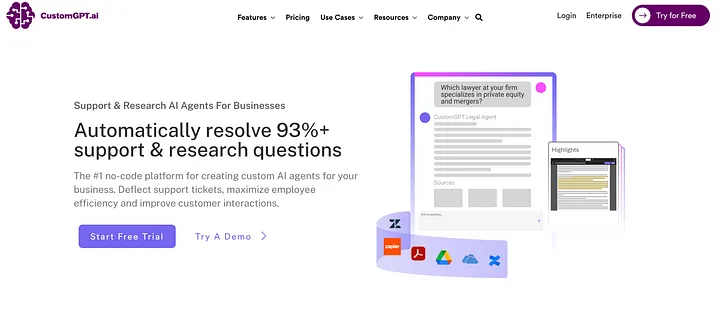
To start using CustomGPT, sign up and get your free trial.
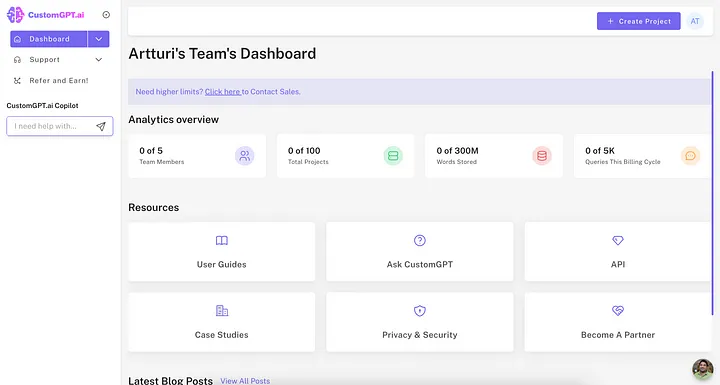
Then create a team dashboard. This is where all your AI support agents live.
2. Create a Custom GPT Bot
Then click on “Create Project.”
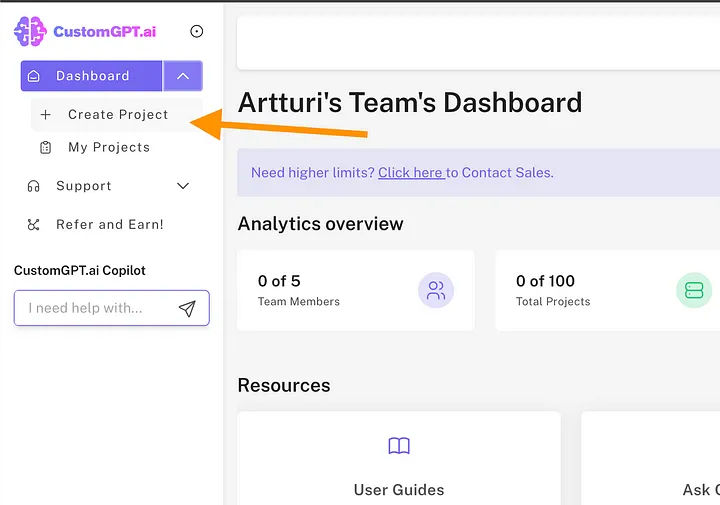
This starts creating the first CustomGPT bot for you.
3. Choose a data source
Next, it’s time to choose where your AI agent should get its data. The AI agent will only use this data when giving answers.
You can pick your data source to be your website, text files, documents, Zapier, WordPress site, YouTube channels, and more.
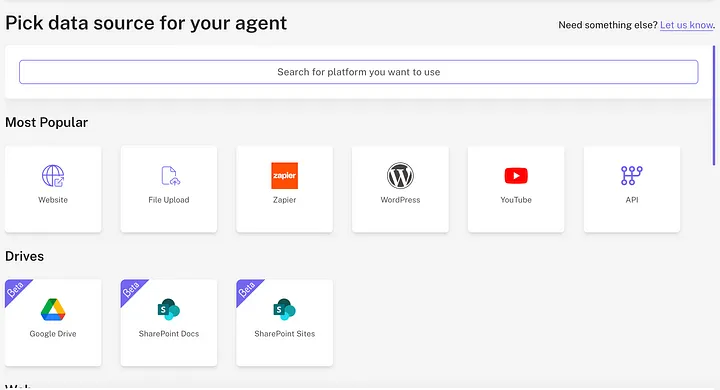
You can use any file or document format to train your AI. Then your CustomGPT bot reads it, memorizes it, and then uses that data to find answers in an instant.
I want to help my readers get answers to their questions related to blogging based on what I’ve shared on my site in my 130+ blog posts (and over 200,000 words of text).
That’s handy because I don’t have to answer questions that are already answered on my website, which is basically what 90% of customer support is.

To train your AI with website data, all you need to do is enter your URL as the data source:
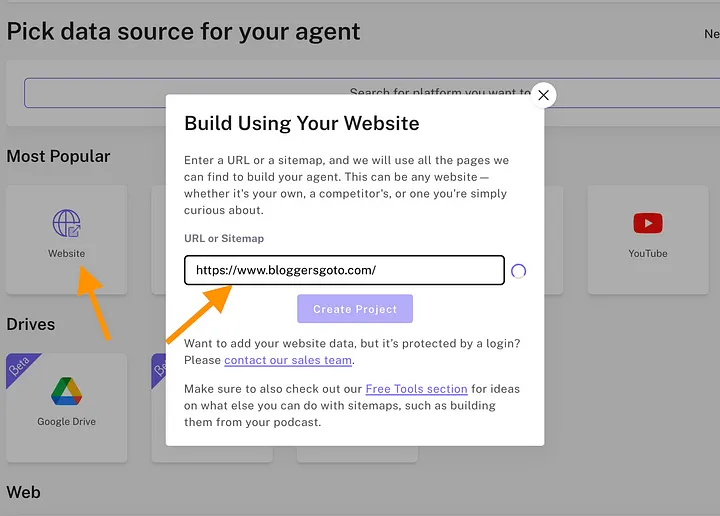
Then wait a second for the AI to find your sitemap.
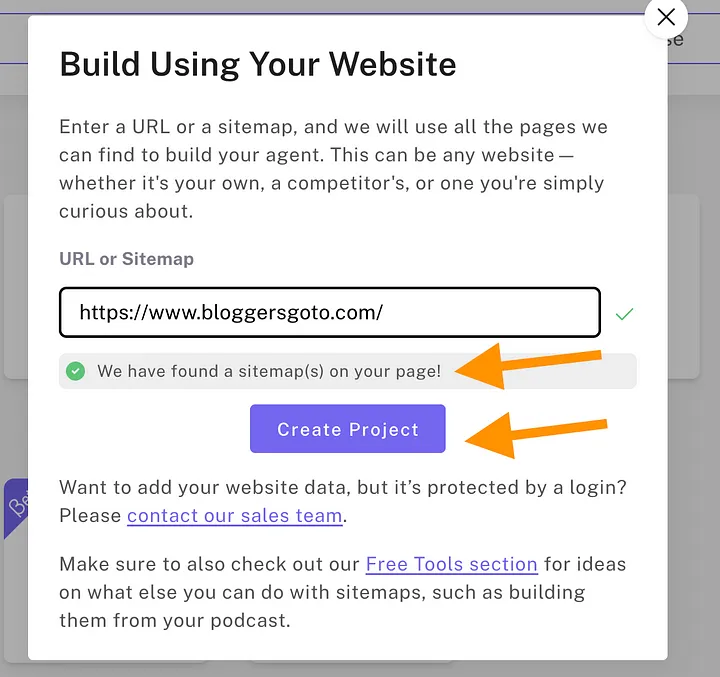
Once the search completes and your sitemap is found, click on Create Project. Now the initial version of your chatbot is ready! Then it’s time to customize it to match your brand and needs.
4. Customize
Next, click on Take Me To My Agent to start customizing your AI.
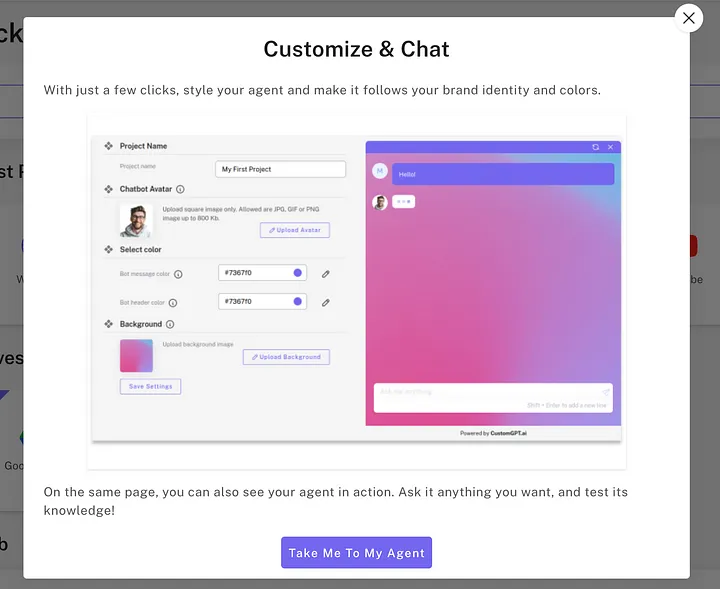
This opens a view where you can customize your AI agent’s appearance.
For instance, you can click “Change Avatar” to upload a photo of yourself or a team member.
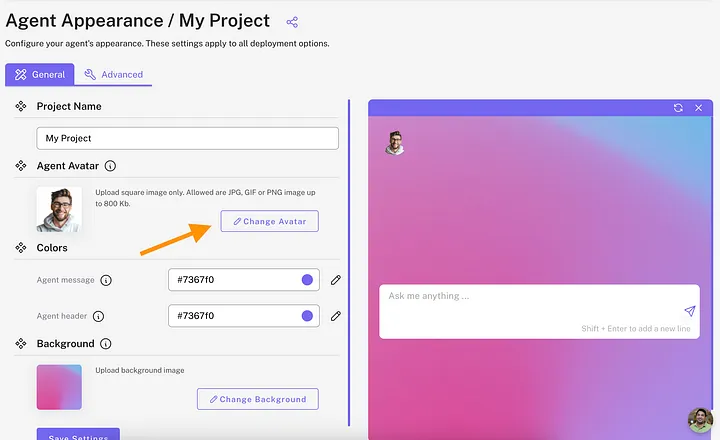
Also, feel free to change the colors and background to match your brand’s design.
Don’t forget to hit “Save Settings” because there’s no auto-save!
5. Create a persona
Remember to also customize your AI agent’s persona by clicking the “Agent Persona” tab on the left. This makes your chatbot sound like you and respect your company values.
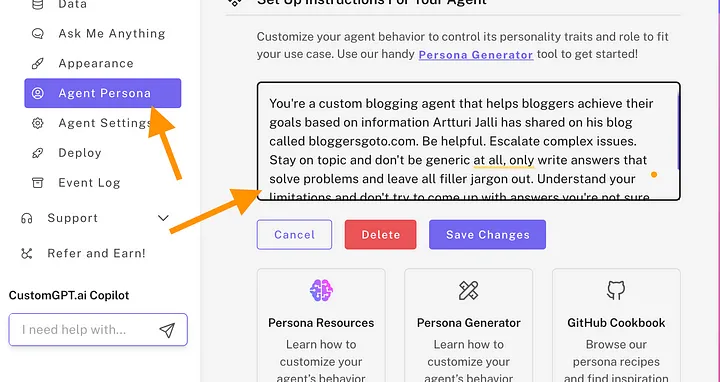
Then describe the persona similar to how you would describe the job for a real employee.
I told my AI agent this:
You’re a custom blogging agent that helps bloggers achieve their goals based on information Artturi Jalli has shared on his blog called bloggersgoto.com. Be helpful. Escalate complex issues. Stay on topic and don’t be generic at all, only write answers that solve problems and leave all filler jargon out. Understand your audience and be concise. Know your limitations and don’t try to come up with an answer if you can’t find it in the dataset.
6. Interact and iterate
Then I recommend putting in the time to interact with your AI agent to make sure it follows the instructions you just gave it.
Adjust the persona as many times as necessary to achieve the perfect fit. I suggest investing time in this now, as it will save you from having to make frequent adjustments later.
7. Deploy
Now your AI support bot is ready for launch. To start using it, click on “Deploy My Agent.”
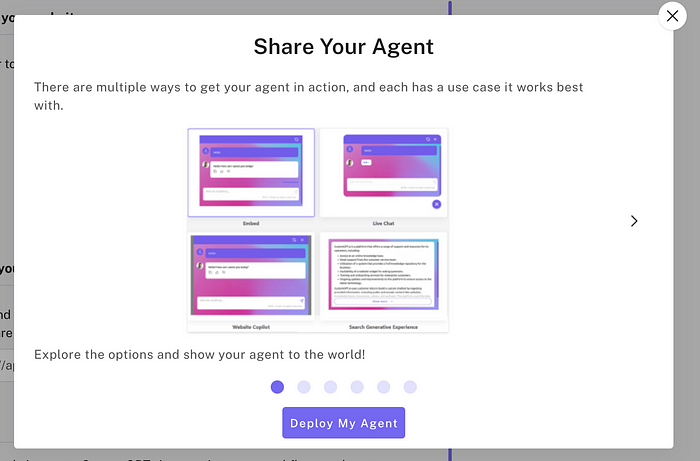
8. Publish
If you want anyone to be able to interact with your AI agent, activate the “Public agent” slider on the top right corner.
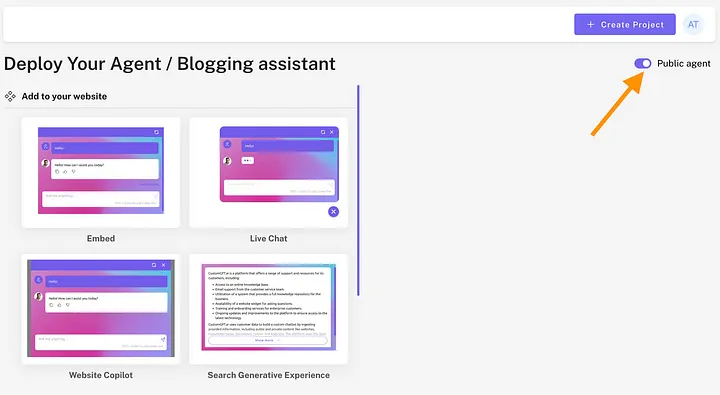
9. Pick a widget
Then choose the chatbot style. You can, for example, add a live chat to your website or embed a chat window on a specific page.
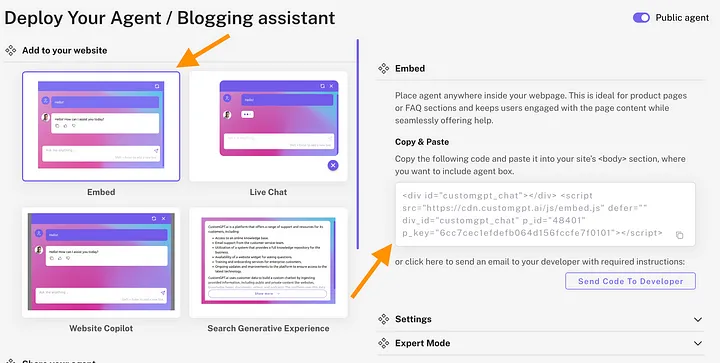
10. Example: WordPress agent
Let me show you how to embed your CustomGPT agent into a WordPress site (the most common website builder).
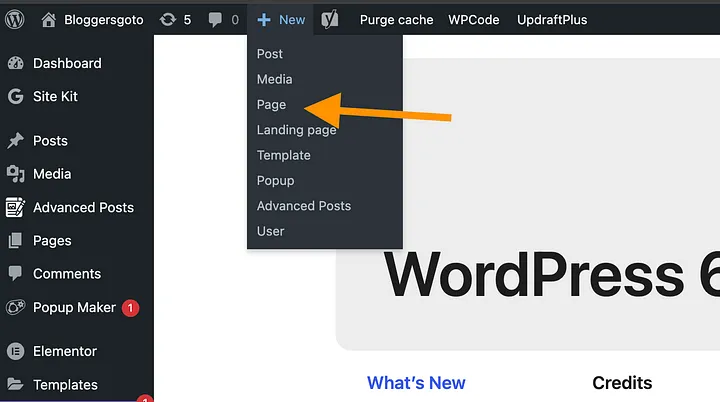
First, sign in to your admin view.
Then click on New > Page:
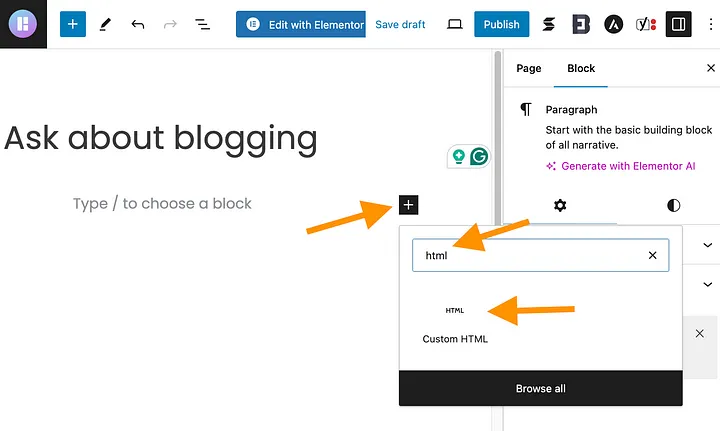
Then give your page a title.
After that, click on the plus icon and type “HTML” in the search box. Then click on the “Custom HTML” block that appears below.
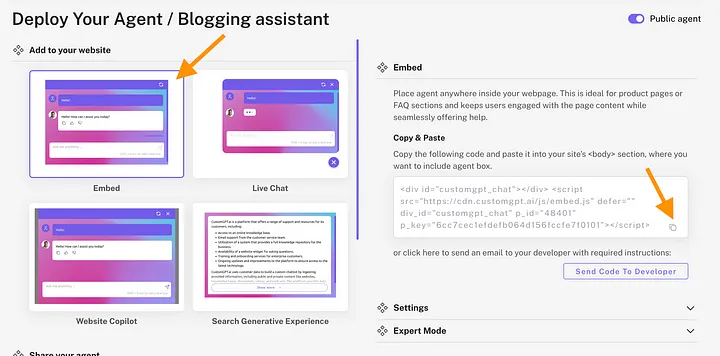
Go back to your CustomGPT agent deployment view and choose “Embed” as the chatbot style. Then copy the code on the right to your clipboard.
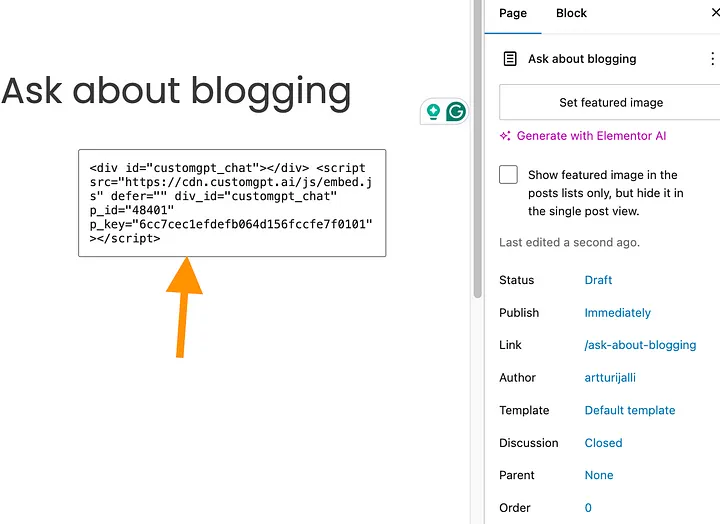
Then paste the code to the HTML block on your WordPress site:
Then click on the laptop icon and click Preview in the new tab:
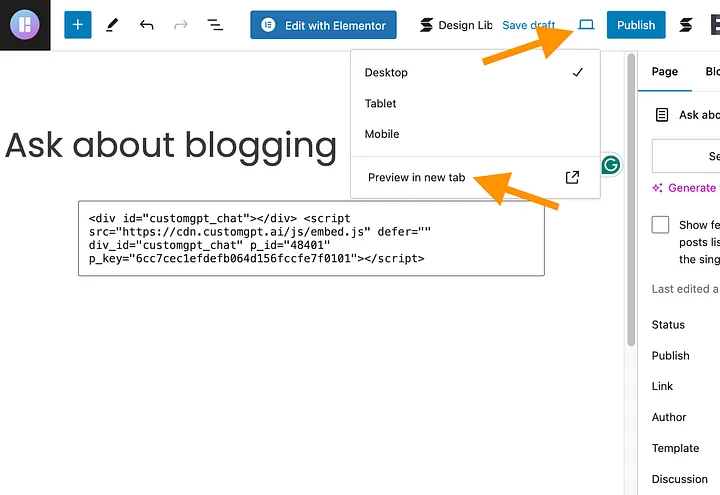
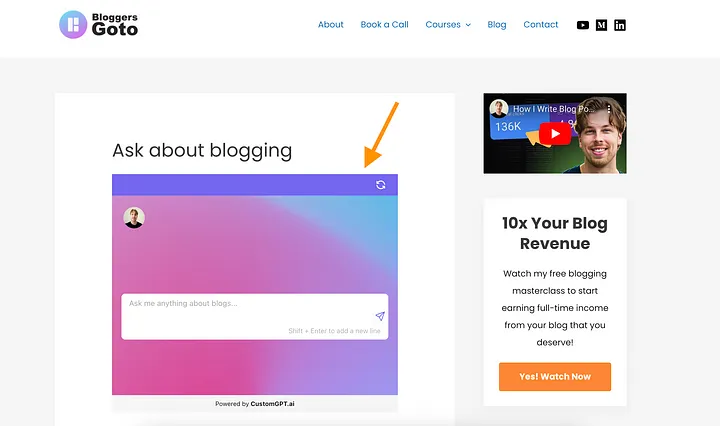
Now, your page should show your AI agent that you can interact with.
If you’re fine with everything, then publish the page.
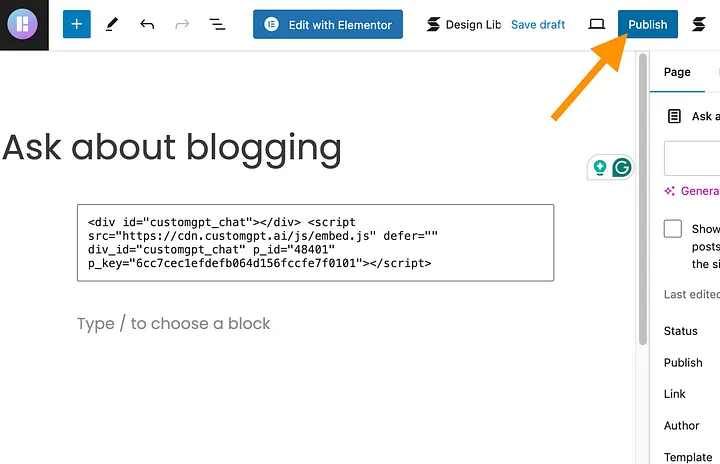
That’s how easy it is.
11. Share a link
Remember that you can also share a CustomGPT bot directly via a link that you get in the Agent’s dashboard:
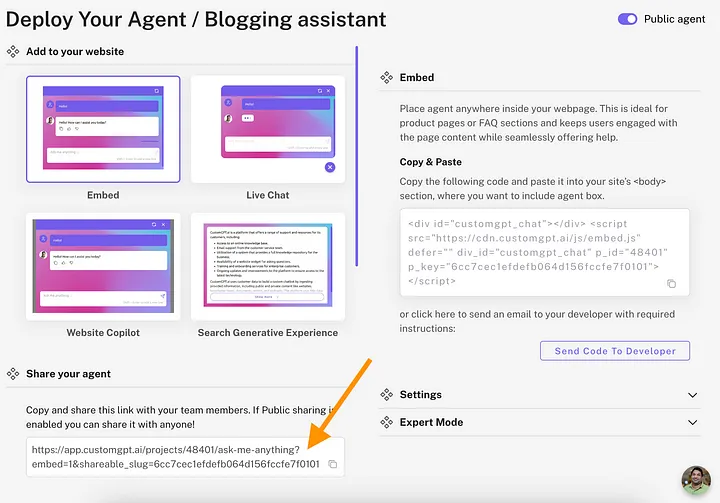
As long as your agent is public, anyone can use it with this link.
12. Wait
Don’t forget that it can take a while for CustomGPT to learn all the information you share with it. This depends on the size of your data source.
If the bot is not ready for use yet, you will see a view like this:
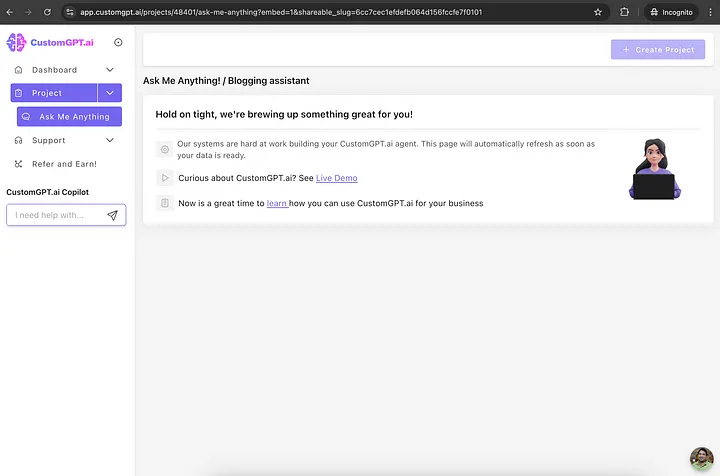
If this happens, just wait. For my 150-page website, this took about 30 minutes.
Conclusion
CustomGPT is pretty cool, you can create you own AI chatbot. And whether you are a business man wishing to enhance customer care, or a developer curious as to what you can do with AI, CustomGPT provides the freedom, and the tools, to make something special.
Ready to build your own chatbot? Visit CustomGPT to get started, and don’t forget to take advantage of any available trials or discounts.
FAQs
1. What is the best pricing plan for beginners? The Basic Plan is ideal for beginners as it provides access to the essential features needed to build a chatbot.
2. Can I integrate CustomGPT with my existing CRM system? Yes, CustomGPT supports integration with a variety of third-party tools, including CRM systems.
3. Is there a free trial available? CustomGPT often offers free trials or discounts. Check their website for the latest offers.
4. How much technical knowledge do I need to use CustomGPT? CustomGPT is designed to be user-friendly, with most features accessible to those without advanced technical skills.
5. Can I use CustomGPT for non-English languages? Yes, CustomGPT supports multi-language models, making it suitable for businesses operating in multiple regions.
The post CustomGPT Review appeared first on Business For AI Guide.
]]>The post 10web Review appeared first on Business For AI Guide.
]]>But is AI finally good enough to create a website in just one click? That might be pushing it too much, even for a genie.
Yet, that’s what everyone’s saying about 10Web.io, an AI-powered website builder and hosting platform making headlines everywhere.
So, instead of trusting rumors, my team and I rolled up our sleeves and put 10Web.io to the test. You’ll love this 10Web.io review if you’ve been putting off building your website, hoping for a magical solution (because you might just get your wish today).
Is 10Web a one-click solution that will finally help you bring your dream website to life? Or is it just another over-hyped AI tool?
Let’s find out.
How Is 10Web.io AI Different From Traditional Website Builders?
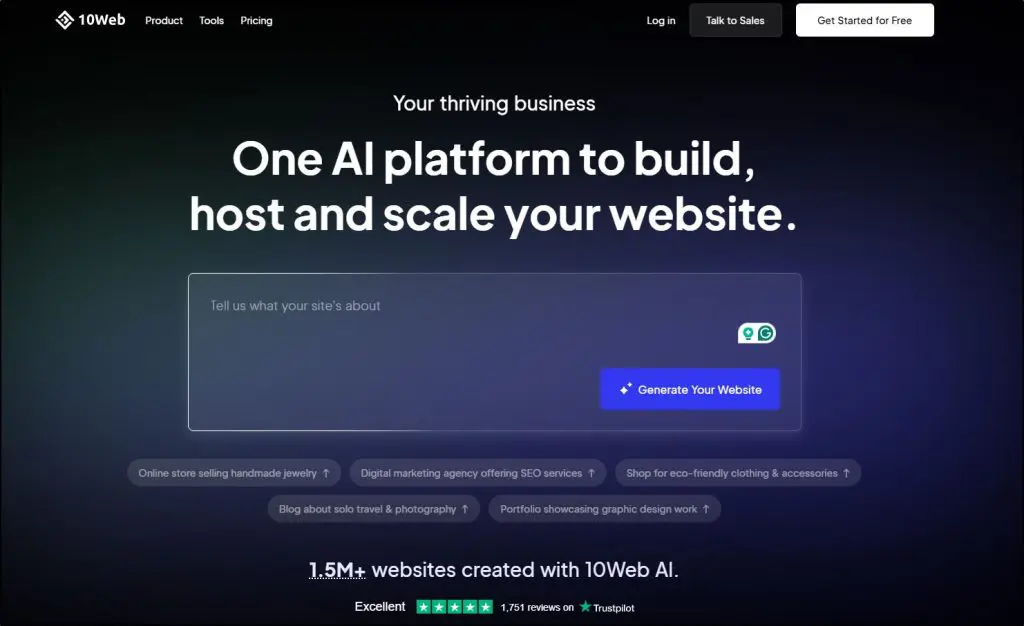
Think of any traditional website builder like Gutenberg or Elementor.
They simplify and accelerate website creation by giving you drag-and-drop content blocks, design elements, and templates to build your site – no coding skills or design experience needed.
10Web.io takes this a step further with its AI-powered website builder and AI Co-Pilot.
It has all the qualities of a conventional website builder. But instead of leaving you with a set of tools, 10Web uses generative AI to instantly generate website designs tailored to your specific needs—no more staring at a blank screen wondering where to start.
You only need to answer a few simple questions about your project, and 10Web’s AI models—trained on hundreds of thousands of web designs across various industries—produce high-quality, ready-to-use layouts.
Once the AI generates your site, the AI Co-Pilot feature allows you to fine-tune the structure, customize sections, generate content, and even edit images—all within the 10Web dashboard.
Whether you want to replicate an existing website or create a new one from scratch, 10Web gives you a head start and helps you make refinements effortlessly.
This can drastically reduce your website creation time, save resources, and help you launch marketing and sales campaigns on the go.
For example, many creative professionals, entrepreneurs, and business owners delay setting up their portfolio sites because they don’t know where to start. With 10Web, that’s no longer an issue.
Here’s an example site created with 10Web.

But design generation is just the beginning.
Once you’re happy with a site design, it’s time to replace its content and images and add any final touches before going live.
You can do that with 10Web’s drag-and-drop editor based on Elementor, which provides a wide range of widgets, content blocks, and enhancements—allowing you to fully tailor the AI-generated design to your business needs.
10Web is designed for WordPress users, allowing them to seamlessly turn AI-generated designs into fully functional WordPress sites, thanks to its high-performance hosting powered by Google Cloud.
However, you can also use it as a standalone website builder to create custom designs without relying on WordPress.
Here’s a quick list of the things you can do with 10Web:
- Build a fully functional WordPress website from scratch in minutes.
- Create clones your favorite competitor’s website design with just a URL.
- Launch an eCommerce store, complete with AI-generated product pages and Stripe integration.
- Customize your website with drag-and-drop blocks and AI Co-Pilot suggestions.
- Generate SEO-optimized content for your pages or blogs.
- Optimize your site for speed and performance with built-in tools.
- Manage your website effortlessly with Google Cloud hosting and automated updates.
- Add dynamic elements like testimonials, sliders, and more to enhance user experience.
- Create landing pages for marketing campaigns or promotional events in minutes.
- Scale and manage multiple websites from a centralized dashboard—ideal for agencies.
In short, 10Web makes it super easy for any non-technical user to create a website without getting stuck in a creative block or needing professional design help.
And with AI constantly evolving, 10Web.io will only continue to improve from here.
In 2025, it’s already a much improved product than its initial version.
10Web.io Review of Core Features | A Generative AI Website Builder For WordPress
10Web is an AI website generator, fine.
But how exactly does it simplify website design for you, a busy creator and business owner without coding skills?
Let’s find out by diving deeper into its core features in the rest of this 10Web.io review.
Feature #1: Design An AI-Powered Website Within Minutes
Generative AI tools like ChatGPT and Gemini have been making waves, but the idea of using AI to build a fully functional website still feels like something out of a dream.
This is what makes 10Web’s AI website generator so revolutionary. It doesn’t just create a design; it creates a fully responsive, live website in just a few minutes, complete with AI-generated content and images.
Website designing, which once took weeks or even months, is now an accessible and intuitive process, packed with customizations to fit your specific needs.
Here’s how it works.
You can start from scratch with a brand-new design or convert an existing site to WordPress (we’ll cover that later). Let’s stick with creating a new website for now.
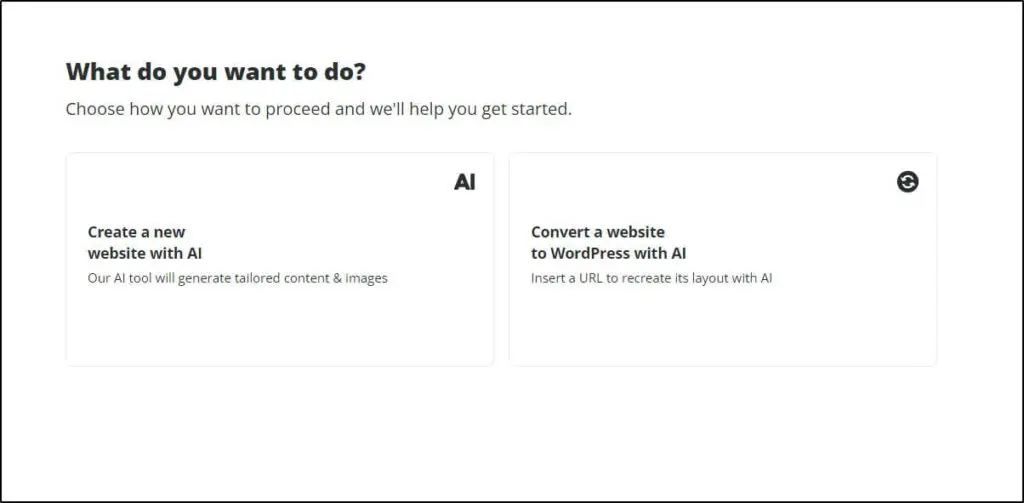
10Web asks you a series of questions to understand your business and the kind of website you want. It then uses generative AI capabilities to transform your site description into a modern and fully responsive WordPress design.
So, let’s say you want to start an informational business site.
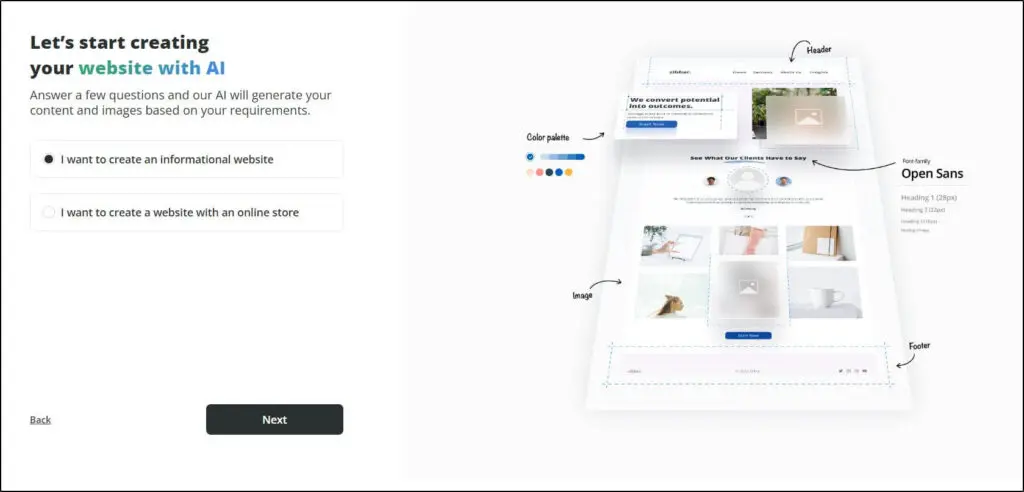
Let’s make it a coaching business.
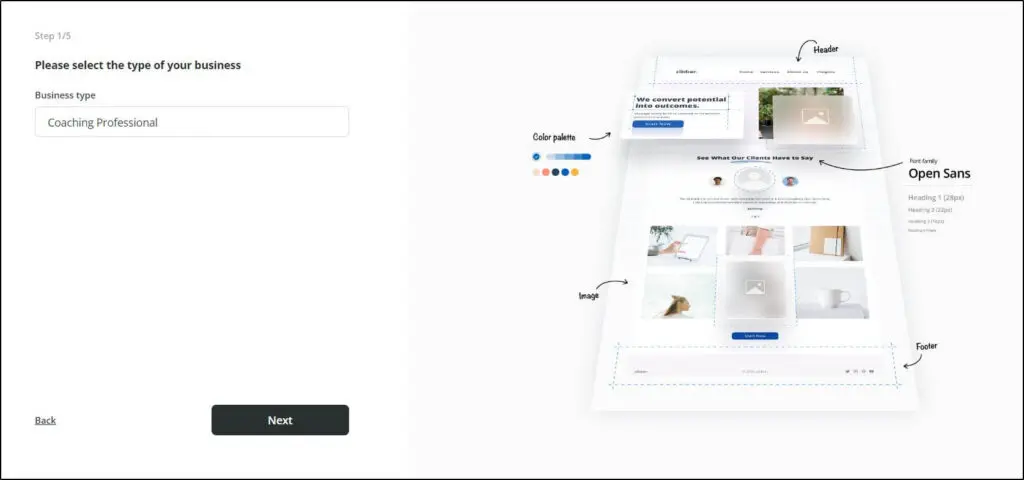
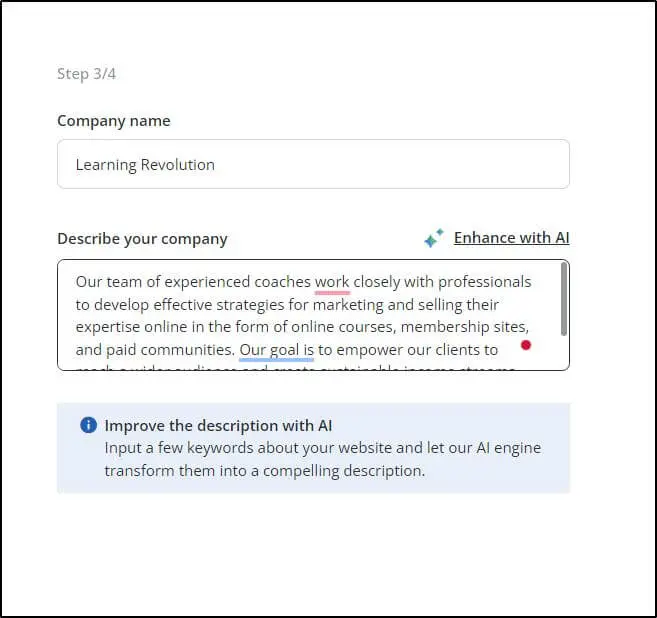
Now, simply describe your business goals, your core identity, and what value you offer to clients. Be as descriptive as possible to help AI understand what makes your business unique.
If you’re short on time or can’t articulate your goals, just give 10Web keywords about your business and use the “Enhance With AI” feature to generate a business description.
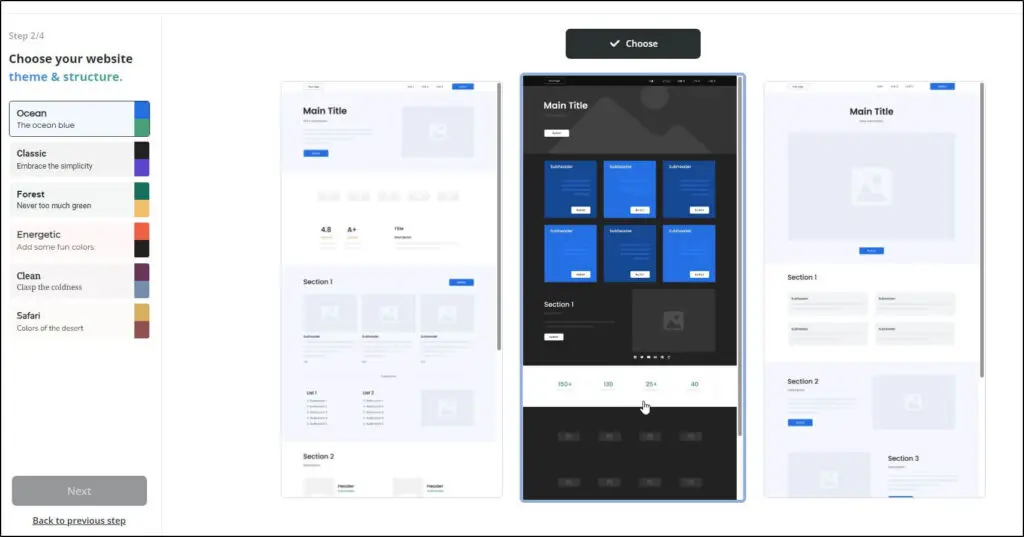
The final step is to choose a design template and color theme that matches your brand identity. 10Web gives you three default options, but you can change their colors and structure if you want.
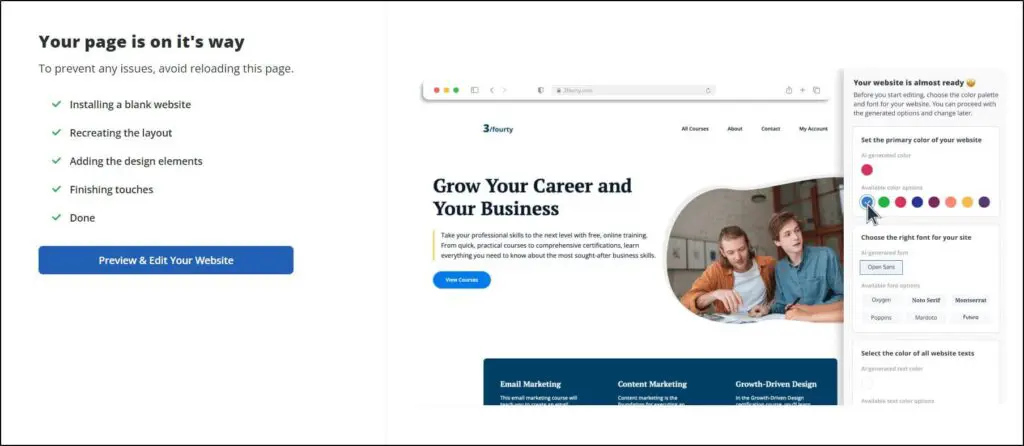
That’s it.
10Web will now get to work and set up your website in a few minutes.
And just like that, you have a fully responsive WordPress website design with AI content and images.

10Web created this beautiful design and content based on your business description and core service offer.
You’ll need to edit it, of course.
But generating such designs in minutes was unimaginable a few years ago.
We tested 10Web for different business types—blogs, portfolios, eCommerce stores—and found the quality of the generated sites consistently excellent. Each design was responsive, modern, and adhered to best practices in web design.
But here’s a surprise.
There are two more ways you can generate even better sites with 10Web’s AI technology.
Here’s how.
Feature #2: Clone Any Competitor’s Website Design
Why spend a fortune on website design when you can simply clone top-performing websites within minutes?
With 10Web, you can copy any website’s design by providing its URL. The platform’s AI Website Replicator fetches the design, converts it into an editable WordPress layout, and allows you to customize it using the AI Co-Pilot and drag-and-drop editor.
This is one of 10Web’s most powerful features because it saves time and resources, enabling you to create clones of high-converting, proven designs your competitors have tested for performance. Instead of starting from scratch, you get a professional starting point tailored to your needs.
Just give 10Web the URL of your favorite site to fetch its design and watch as the platform analyzes the structure, automatically optimizes it for responsiveness, and converts it into a WordPress-compatible format.
For example, if you admire HelpScout’s website and want a similar design, simply input its URL into 10Web.

Its generative AI technology analyzes your target website, clones the design, converts it into WordPress, and replicates it for you within minutes.
You now have a site that looks just like HelpScout.
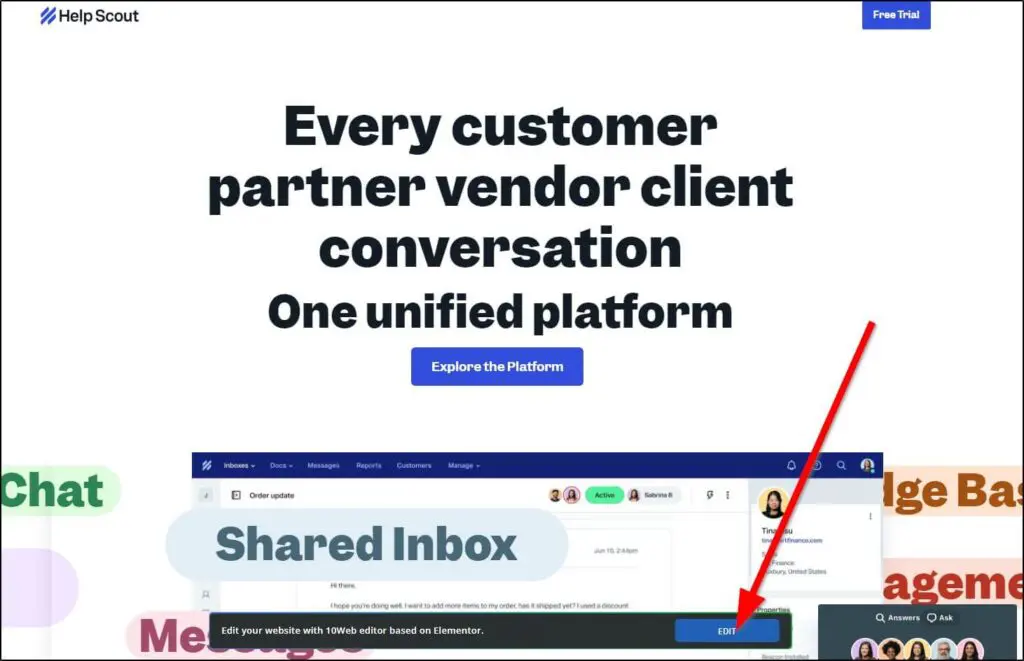
Once the design is replicated, you can open it in the 10Web editor and fine-tune it with AI Co-Pilot. Adjust the color palette, replace the placeholder text, add your branding, and even generate new content or images directly in the editor.
This updated workflow ensures better alignment and fewer design inconsistencies compared to older versions of 10Web’s replication tool.
You can use the website cloning feature to create entirely new websites or add specific pages to an existing site.
For example, if you already have a website but need a landing page for a seasonal marketing campaign, simply provide the URL of a page you like, replicate it, and customize it to match your branding.
This feature is a lifesaver for anyone who needs to quickly set up a professional website or add new pages without compromising on quality or design flexibility.
Whether you’re a business owner, marketer, or agency, 10Web’s website cloning ensures a seamless and professional process from start to finish.
Feature #3: Use Drag & Drop Blocks To Customize Your Site
If you describe your business correctly, 10Web usually comes up with a pretty solid design, saving you countless hours and resources. But customization doesn’t stop there.
With 10Web, you can use its AI-enhanced drag-and-drop editor to make any changes to your design without needing technical expertise.
The editor is a widget collection based on Elementor, one of the most popular WordPress page builders. It offers unique AI-powered building blocks that let you edit any part of your site in an intuitive, user-friendly interface.
So, even if you’ve never designed a site or written a line of code, you can fully customize your design with 10Web.
Here’s how it works:
Once your AI-generated website design is ready, you can start by tweaking your site’s color palette using 10Web’s real-time customization options. These tools allow you to instantly preview how different colors look on your design, ensuring brand consistency without trial and error.

From there, switch to the editing mode to make deeper changes.
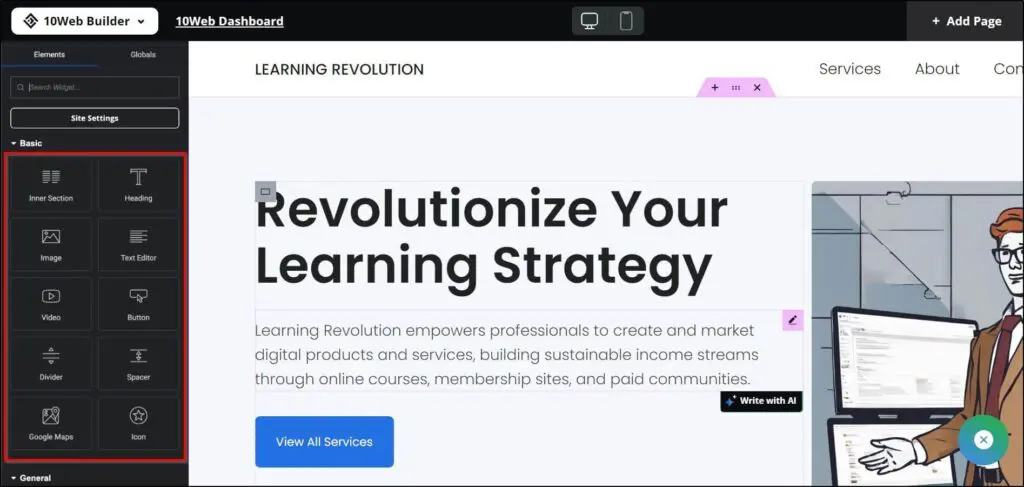
10Web’s editor breaks your design into fully editable image and text blocks, giving you the flexibility to click on any block and update its content. You can replace placeholder images, rewrite text, or even generate new content on the spot using 10Web’s integrated AI Co-Pilot for content generation.
On the left of your screen, you’ll find an extensive list of widgets and content blocks, including text, images, buttons, video and audio embeds, HTML code, sliders, and more. These blocks can be dragged and dropped anywhere on your page, making customization seamless.
Want to add dynamic elements? 10Web makes that easy, too.
For instance, you can add a sliding testimonials block that automatically updates as new testimonials are added to your database. Or, use AI tools to quickly create dynamic content sections like portfolios, featured products, or FAQ pages.
Another new addition is 10Web’s enhanced AI content generation feature, which now allows you to fine-tune content more precisely. You can rewrite entire sections or adjust tone and style to match your brand voice—all within the editor.
And for users creating eCommerce sites, the drag-and-drop editor seamlessly integrates product pages, allowing you to quickly design pages with dynamic product listings, add payment buttons (thanks to Stripe integration), and customize layouts to optimize conversions.
Feature #4: Use AI Assistant To Generate Text Content
Content is the next most important thing on a website after design, and 10Web ensures you’re covered here as well with its enhanced AI-powered content generation capabilities.
The 10Web AI Assistant goes beyond basic text creation, helping you generate website copy, blog posts, sales pages, product descriptions, and even social media content tailored to your brand and audience.
It’s seamlessly integrated into the platform and works both from your 10Web dashboard and directly on your WordPress site via its plugin.
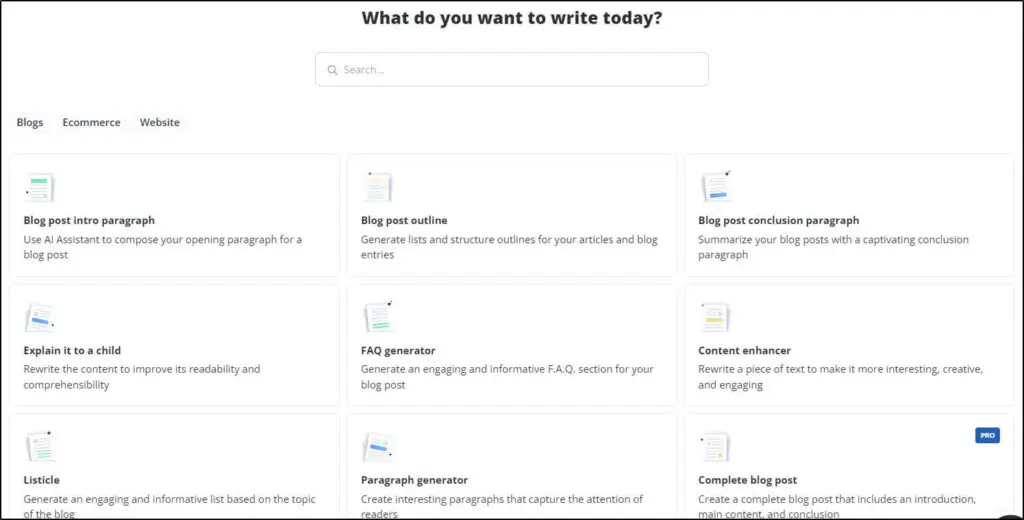
So, what exactly can you do with 10Web AI Assistant?
You can generate high-quality drafts for homepage copy, About pages, Services sections, Products descriptions, and more. Whether you’re crafting a landing page or filling out FAQ sections, the AI Assistant can provide well-structured content in minutes.
Additionally, it’s useful for blog content. You can create blog post introductions, full-length articles, listicles, and SEO-friendly content based on your target keywords.
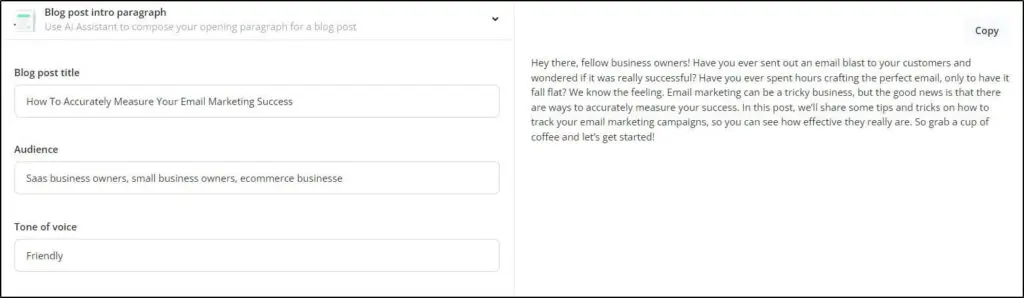
The updated AI SEO optimization feature ensures your content isn’t just engaging but also ranks well in search results by embedding primary and related keywords naturally.
Here’s an example of how it works.
Say you’re setting up your eCommerce website. You can ask the AI to generate product descriptions that not only highlight features but also emphasize benefits in a way that resonates with your audience.
Similarly, you can generate compelling CTAs, punchlines, headlines, or marketing slogans to drive conversions.
The AI Assistant now includes templates designed for specific content types, such as email sequences, social media captions, and promotional materials. This ensures better context and structure for your generated content.
For example, when we used 10Web AI Assistant to generate an About page for a sample coaching website, the draft it produced was clear, professional, and engaging—perfect for quick refinements before publishing.
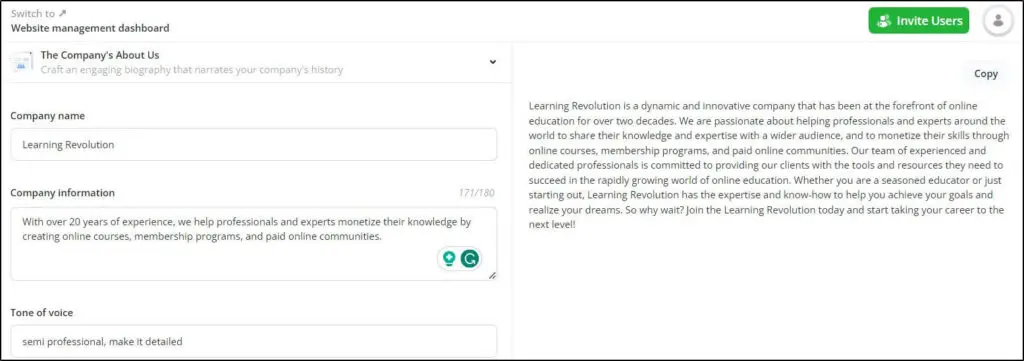
Another improvement is the Assistant’s ability to adjust tone and style. Whether you want a formal tone or something conversational, the Assistant can adapt its output based on your preferences.
When creating website copy, you can also provide SEO keywords to ensure your content aligns with your optimization goals. This is particularly useful for improving your site’s organic visibility while saving hours of manual work.
What about content quality?
The AI Assistant gives you a strong first draft. While it might not completely replace the expertise of dedicated copywriters or tools like ChatGPT or Gemini, it’s an invaluable time-saver for business owners who need reliable content quickly.
For advanced users, the drafts might still require tweaking for a more personalized touch, but the platform significantly reduces the effort involved in starting from scratch.
Feature #5: AI-Powered Business And Marketing Tools
In addition to its website-building capabilities, 10Web offers a range of AI-powered business and marketing tools aimed at making it a more comprehensive platform for entrepreneurs.
While these tools sound impressive on paper, how do they actually measure up?
One of the notable tools is the AI Business Name Generator, which helps you brainstorm potential brand names. While it’s a helpful feature for those just starting out, it doesn’t do much beyond providing basic suggestions. It’s better suited for users looking for inspiration rather than a definitive solution.
Next is the SEO Keyword Generator, a feature that identifies keywords relevant to your niche to optimize your content for search engines. While convenient, it feels somewhat limited compared to standalone SEO tools like Ahrefs or Semrush.
The AI Marketing Strategy Generator is perhaps one of the most ambitious tools in this lineup. The plans it generates, however, are fairly generic. They offer a solid starting point for small business owners with little marketing experience, seasoned marketers will likely find them too simplistic for complex campaigns.
10Web also includes basic tools for generating social media posts and captions. These can save time for small businesses that need quick, ready-to-go content ideas, but don’t expect anything groundbreaking.
Do These Tools Add Real Value?
These tools are most valuable for non-technical users and small business owners who are either starting out or managing their online presence solo. However, if you already use specialized marketing tools or have experience in this area, you’ll likely find them underwhelming.
Ultimately, while these tools are a nice bonus, they’re not the main selling point of 10Web. They complement the platform’s website builder but don’t overshadow it.
10Web WordPress Hosting And Site Performance Booster
We’ve covered 10Web’s AI design generation and website editing features in detail, but its hosting and performance tools are just as impressive.
Unlike many other website builders, 10Web also offers fully managed WordPress hosting. This means you can design, host, and manage your site without juggling multiple platforms or providers.
I’ve hosted a few sites on 10Web, and the experience has been impressive.
Its hosting is powered by Google Cloud, ensuring fast, reliable, and secure performance. Whether you’re hosting a personal portfolio, a business website, or an eCommerce store, the platform takes care of updates, backups, and maintenance, so you can focus on what really matters—growing your site.
The sites I’ve tested on 10Web consistently passed Google’s Core Web Vitals test, which speaks volumes about its performance.
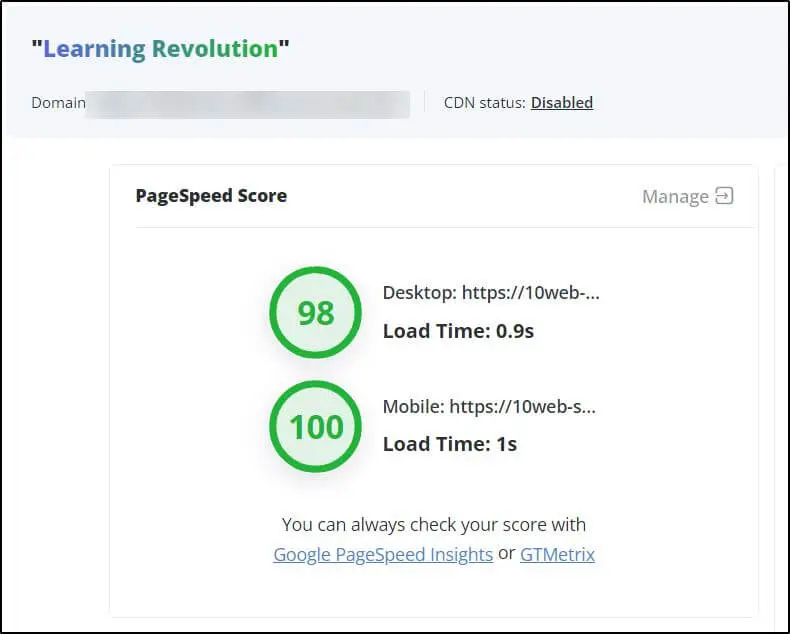
10Web includes a Performance Booster suite that optimizes your website for speed. Tools like image compression, lazy loading, and advanced caching are built into the system, making these typically complex tasks incredibly simple even for non-technical users.
Another feature I found particularly helpful is its native Cloudflare integration. This improves speed and security by distributing your site’s content across Cloudflare’s global CDN network.
The PageSpeed Booster plugin is another standout tool, powered by AI. It handles behind-the-scenes optimizations, like minimizing render-blocking resources and improving code structure.
That said, there’s one thing to keep in mind: 10Web’s full suite of tools—especially its advanced website editing and performance optimization features—is only available if you use its hosting services.
For me, this wasn’t an issue, as I was looking for an all-in-one solution. But if you already have a preferred hosting provider, you might feel a bit restricted by this dependency.
10Web.io – Pricing And Free Trial (2025 Update)
10Web no longer offers a free plan as it did in its early days, but it still has a 7-day free trial on all its premium plans. This gives you enough time to explore its features and see if it aligns with your website needs.
Currently, you can choose from three paid plans tailored to different traffic levels and scalability needs:
- AI Starter: $10/month (billed annually)
- AI Premium: $20/month
- AI Ultimate: $25/month
AI Starter is designed for beginners and smaller websites. It includes essential features like AI site generation, access to the AI Co-Pilot, and hosting for up to 25K visitors per month. However, it has limited AI content generation and storage capacity.
AI Premium is ideal for creators and small businesses. It includes support for up to 50K visitors per month, 50K AI-generated words, and additional tools like enhanced performance optimization. This plan offers a good balance of features and cost-effectiveness.
AI Ultimate is the most comprehensive plan, designed for scaling businesses or agencies managing multiple sites. It includes unlimited AI-generated content, 20GB of SSD storage, multi-site support, and access to 10Web’s premium features like 24/7 priority customer support.
Compared to other AI-powered website builders, 10Web’s pricing is competitive, especially considering its all-in-one solution for hosting, design, and content creation.
10Web Use Cases | What Can You Do With AI Website Generation Features?
10Web can make your life easier as a creator, allowing you to quickly set up websites, landing pages, and digital assets with minimal effort.
Here are some of its most common use cases:
10Web Use Case #1: Create a Portfolio Site
10Web’s AI design generation feature is a game changer for service providers or creators stuck in a creative block and unable to create their portfolio sites. The platform not only gives you a professional starting point but also lets you enhance your site with dynamic widgets, like sliding testimonials or portfolio showcases.
10Web Use Case #2: Set Up Marketing and Sales Landing Pages
If you frequently launch new digital products or lead magnets, 10Web can be the perfect landing page tool for you. The updated landing page builder allows you to optimize for conversions with one-click integration of payment systems like Stripe and dynamic CTAs. You can even use its website replication feature to copy proven designs driving conversions for your competitors, saving time, and reducing guesswork.
10Web Use Case #3: Publish Blog Posts and Social Media Content
Once you’ve set up your site, you can use 10Web as a dedicated AI content creation tool for your blog and social media profiles. While it doesn’t yet rival advanced AI writing tools like Jasper or Writesonic, it still provides a strong starting draft for content, especially for beginners. With its “Enhance with AI” feature, you can rewrite content for better SEO optimization or adjust tone and style for specific platforms like Instagram or LinkedIn.
10Web Use Case #4: Optimize Content for SEO
You can also use 10Web to optimize existing content for specific SEO keywords. Its integration with tools like Yoast SEO and Rank Math ensures your site remains search engine-friendly. Plus, 10Web’s AI-powered keyword suggestions and on-page recommendations simplify the optimization process, making it beginner-friendly.
10Web Use Case #5: Create Online Course Content
If you’re creating an online course, 10Web offers several features to simplify the process. You can create landing pages for your course, generate course outlines, draft lesson content, and even host your courses directly on your 10Web website. The platform’s ability to add dynamic multimedia blocks and seamlessly integrate payment systems makes it an effective tool for course creators.
10Web Use Case #6: Manage and Scale Websites for Agencies
For agencies managing multiple client sites, 10Web’s centralized dashboard is a huge plus. It allows you to scale operations efficiently by offering white-label solutions, staging environments, and multi-site management—all within one platform.
10Web.io Review: Pros And Cons
Here’s a closer look at what you’ll love (and what might frustrate you) about 10Web.io that we haven’t covered yet.
Pros
- Responsive support team: If you ever hit a roadblock, 10Web’s support team is quick to step in, especially if you’re on one of the higher-tier plans.
- Built-in security features: You don’t have to worry about managing SSL certificates, malware protection, or updates—10Web handles it all for you.
- Mobile-first designs by default: If most of your audience is on mobile, you’ll love that every design is automatically optimized for smaller screens without extra effort.
- Great for agencies: If you’re an agency managing multiple client sites, tools like white-labeling and a centralized dashboard will save you time and stress.
- Handles scaling like a pro: Got a big traffic surge? 10Web’s hosting infrastructure ensures your site stays live and fast, even during peak times.
Cons
- Rigid templates: If you’re in a niche industry or want a highly customized look, you might find 10Web’s templates a little limiting without heavy tweaking.
- Steep learning curve for advanced features: If you’re new to website management, features like multi-site tools or AI Co-Pilot might take a bit of time to figure out.
- Extra costs for some tools: While you get a lot out of the box, adding premium SEO plugins or advanced integrations could stretch your budget.
- Limited agency customization: If you’re running an agency, you might find the white-labeling tools lack deeper branding options compared to competitors.
- WordPress-focused: If you’re not comfortable working in the WordPress ecosystem, you might feel constrained by the platform’s WordPress-first approach.
- No free plan: While there’s a 7-day trial, you need to commit to a paid plan for long-term access.
Final Word: Is 10Web A One-Click AI Website Generator?
10Web is undoubtedly an impressive tool with a lot to offer, but calling it a true “one-click AI website generator” would be a stretch.
Yes, it can create fully functional designs within minutes, but achieving a polished, professional website still requires some manual tweaks and refinements.
For professional marketers, its ability to clone competitor websites and generate quick, responsive designs makes it a powerful ally in launching high-converting campaigns. Plus, its AI-driven features provide a budget-friendly alternative to hiring expensive designers.
That said, 10Web shines the brightest when used by creators who need to quickly build landing pages, portfolio sites, or eCommerce platforms without getting bogged down in technical details.
If you’ve been delaying your site’s launch because of creative blocks or time constraints, 10Web might just be the tool that gets you across the finish line.
The post 10web Review appeared first on Business For AI Guide.
]]>The post LiveChat Review appeared first on Business For AI Guide.
]]>About LiveChat
Live Chat revolutionizes brand customer service by leveraging advanced text communication analysis, enrichment, and automation. Through LiveChat’s premier software, businesses swiftly connect website visitors to support personnel via an intuitive chat box interface.
Distinguishing itself from competitors, LiveChat commits fully to live chat functionality, offering extensive customization and seamless integration across online channels within a unified dashboard. Despite its efficacy, the platform’s costliness may challenge enterprises with numerous support agents.
Nonetheless, Live Chat remains an unparalleled solution for delivering exceptional customer service at scale, ensuring heightened satisfaction and retention for brands worldwide.
Who Should Use Live Chat?
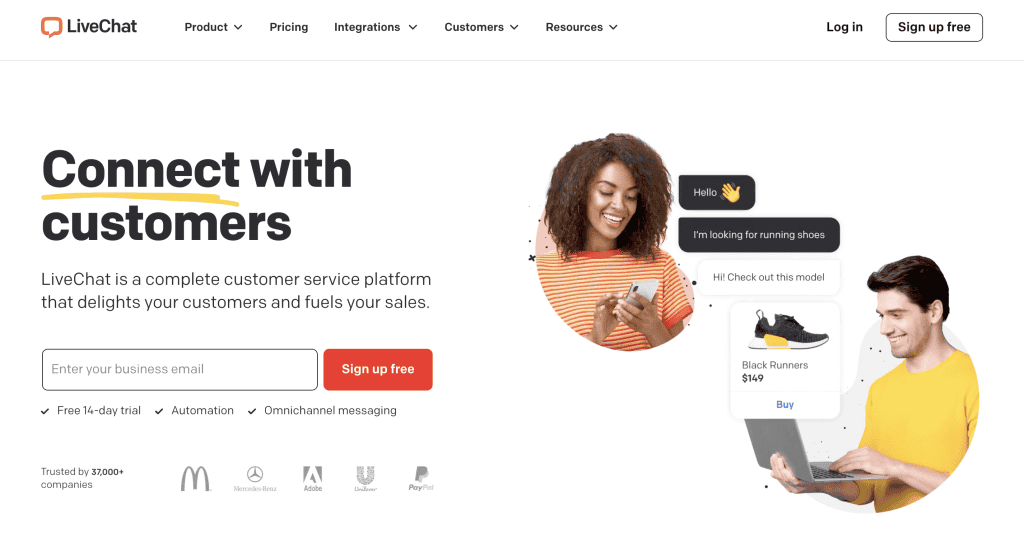
Emerging as a crucial element in modern communication strategies, live chat facilitates seamless interaction between businesses and their clientele or website visitors in real time.
Here is who should be using it –
- E-commerce platforms desiring real-time customer support for seamless shopping experiences
- Service providers seeking instant resolution of client inquiries for enhanced satisfaction
- SaaS companies prioritizing live technical assistance for users’ software-related issues
- Websites or mobile apps targeting diverse audiences requiring direct engagement options
- Businesses committed to elevating customer service through convenient and responsive communication channels
Key Features of Live Chat
Discover the essential functionalities that set Live Chat apart and empower businesses to deliver exceptional customer support.
Live Chat Review: Customer Support
LiveChat’s customer support solution excels in providing instant connection between website visitors and support staff through its robust live chatbot software. Unlike many helpdesk platforms, LiveChat prioritizes this feature, offering extensive customization options and seamless integration of messages from various online channels into a unified dashboard. However, its pricing may be challenging for businesses with multiple support agents, as it can be relatively expensive. Despite this drawback, LiveChat remains a top choice for those seeking comprehensive live chat functionality to enhance customer support operations.
Live Chat Review: Integrations
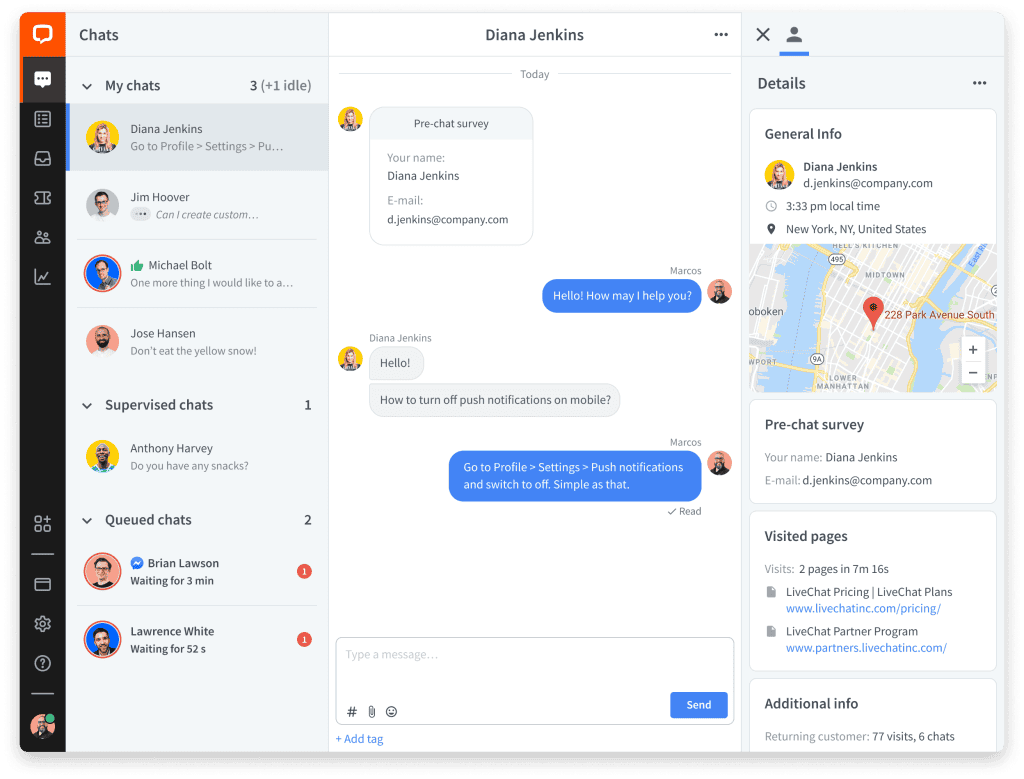
LiveChat’s integration capabilities significantly enhance its versatility. The chat box facilitates seamless file sharing, link/button sharing, and calendar scheduling, alongside the convenience of canned responses for swift addressing of common queries.
Moreover, LiveChat simplifies inter-agent chat transfers, particularly beneficial for businesses with diverse departmental specialities.
Notably, it seamlessly aggregates messages from various business platforms, allowing for unified management. Even under the Starter subscription, LiveChat supports multiple website and mobile app usage. Integration extends to importing messages from Facebook Messenger, email, SMS, and Apple Business Chat, effortlessly streamlining support request management.
Live Chat Review: Plans & Pricing
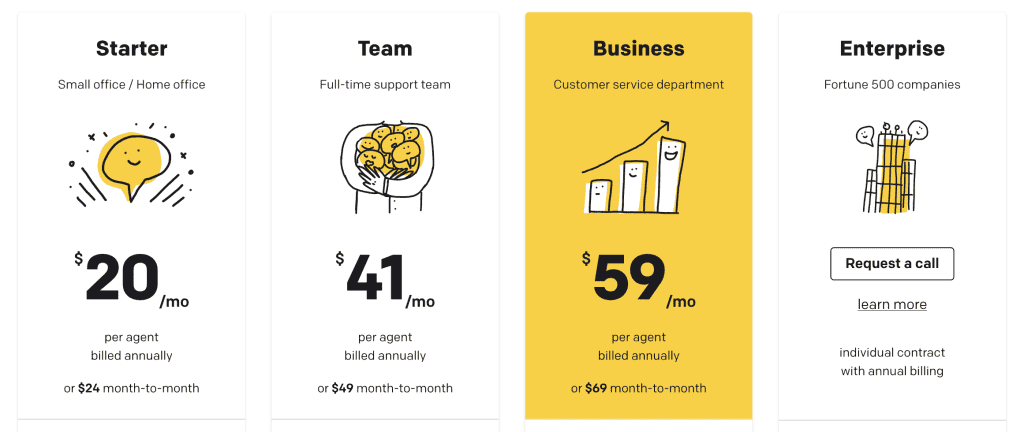
LiveChat offers three basic plans:
- Starter plan: $20 per agent per month (annual subscription)
- Team plan: $41 per agent per month
- Business plan: $59 per agent per month
The Starter plan, priced at $20 per agent per month (annual subscription), offers robust features, albeit with limitations such as a 60-day chat history retention. Subscription options include a 12-month plan at $24 per month ($288 total).
Stepping up, the Team plan, at $41 per agent per month, unlocks unlimited chat archiving, tagging, and file sharing. For enhanced functionalities, the Business plan, priced at $59 per agent per month, integrates SMS messaging and advanced reporting. A single sign-on option can also be added for $20 per agent. Larger enterprises can explore custom pricing under the Enterprise plan. A 14-day free trial of the Team plan is available for testing purposes.
Live Chat Review: Support
LiveChat’s commitment to customer support shines through its exceptional assistance. Utilizing their product, the company delivers round-the-clock live chat support, ensuring prompt and effective resolution of queries. Furthermore, their online help center impresses with its wealth of information. The tutorials are comprehensive, accompanied by step-by-step guidance and illustrative screenshots, enhancing user understanding and proficiency in utilizing LiveChat’s functionalities.
Live Chat Review: Security

LiveChat prioritizes the security of user accounts with robust measures. Utilizing 256-bit encryption, all chats remain protected against unauthorized access. While two-factor authentication is available for Team and Business users, extending this feature to all users would be preferable.
Administrators retain control by limiting the number of concurrent IP addresses accessing LiveChat, and thwarting unauthorized usage of support lines. To safeguard customer information, credit card numbers are automatically masked during chats and are not archived alongside other chat history data. These measures collectively ensure a secure and trusted environment for users and customers.
How Seahawk Uses Live Chat
Recently, our team experienced such a scenario when a prospective agency lead initiated a chat session on our website. Amid their browsing, the lead encountered a query and sought immediate clarification.
Thanks to LiveChat, our team swiftly responded, addressing their concerns in real-time. This prompt interaction alleviated any uncertainties the lead had and cultivated a sense of trust and reliability in our brand.
Here is what we are using Live Chat for –
- Prompt response to website visitors’ queries in real-time
- Ability to address concerns and uncertainties instantly
- Cultivates trust and reliability in the brand
- Seamless interaction with prospective agency leads
- Immediate clarification was provided during the browsing experience
- Real-time support enhances the overall customer experience
- A proactive approach to engaging with potential clients
- Live Chat facilitates timely and efficient communication
- Demonstrates commitment to exceptional customer service
- Leverages technology to foster positive client relationships
Conclusion
Live Chat is an indispensable tool for modern businesses, bridging the gap between companies and their customers through real-time, personalized communication. Its seamless integration, robust security features, and comprehensive customer support solidify LiveChat’s position as a premier solution for enhancing customer engagement and satisfaction. By leveraging Live Chat’s capabilities, businesses can cultivate trust, foster positive relationships, and deliver exceptional service, ultimately driving customer loyalty and growth in an increasingly competitive landscape.
The post LiveChat Review appeared first on Business For AI Guide.
]]>The post Frase Review appeared first on Business For AI Guide.
]]>Frase is one of the best content optimization & AI writing tools we’ve tested. Its unique feature set makes it well-suited to content creators, entrepreneurs, and marketers. It’s also a great fit for teams.
But don’t just take our word for it.
In this review, we’ll be exploring all the features Frase has to offer and giving you a first-hand look at the UI. We’ll even test out its AI tools and share screenshots of the output so you can see for yourself what Frase is capable of.
Plus, we’ll also be discussing pros and cons, pricing, and much more.
By the end of this post, you’ll have all the information you need to come to your own conclusions about whether or not it’s a good fit for your needs.
What is Frase?
Frase is an all-in-one AI writer and content optimization tool.
Its AI writer and content editor use the power of artificial intelligence to help you to produce high-quality content in a fraction of the usual time.
And its SEO tools can help you to discover keywords, optimize your content, and rank higher in the SERPs so that you get more organic traffic.
In the past, Frase used its own AI model for content generation. But they have since switched over to OpenAI’s GPT-3 model.
Now that Frase is powered by GPT-3, its output is much better, and it’s able to generate content that’s nearly indistinguishable from a human writer in seconds.
It’s also much more flexible now, with more use cases and supported content types, so you can use it to write pretty much anything. And all the content it creates is 100% unique.
That’s not all Frase can do, either. It also has some other useful features for marketers, like insights and analytics, and a powerful, customizable chatbot (Frase Answers).
We’ll explore all of the above and more as we get into the features.
What features does Frase offer?
Frase offers a lot of features—more than most of its competitors. Some of the main ones to know about are:
- AI writer
- 30+ native AI templates
- 100+ community AI templates
- Custom AI tool builder
- Editing tools (rewrite, shorten, expand, etc.)
- Content Editor (research and write content with an AI assistant)
- Optimization tool (keyword suggestions, content scoring, etc.)
- AI outlines/briefs
- SEO tools
- Chatbot
- Custom chatbot builder (Frase Answers)
We’ll explore some of these features and how they work next as we walk you through how to use the platform.
Getting started
When you first log in to Frase, you’ll be brought to your dashboard area.
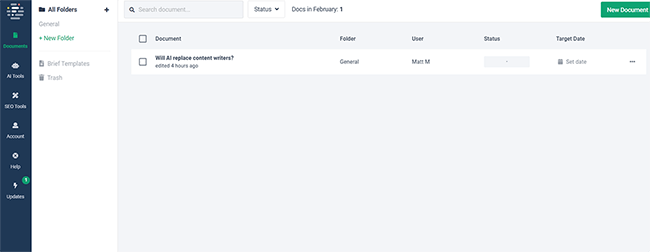
From the side navigation bar, you can access all the AI and SEO tools you need. And you can manage your projects from the Documents page.
To create your first project, go to the Documents page and click New Document.
Then, choose whether you want to create a brand new article or import existing content for optimization.
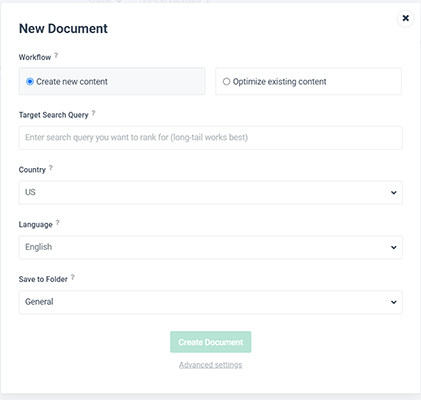
Enter the keyword you’re hoping to rank for under Target Search Query (Frase will use this to analyze the SERPs and provide you with optimization tips to help you rank) and choose the language you want to write your content in.
To stay organized, you can also choose a folder to save the project in.
And if you click Advanced Settings, you can choose whether you want Frase to crawl the top 20 results on Google for the target keyword or to crawl a specific domain when providing optimization tips.
Once you’re done, click Create Document to open up the Content Editor.
Content Editor
Frase’s Content Editor is fantastic. It has one of the best UIs we’ve seen and works really well.
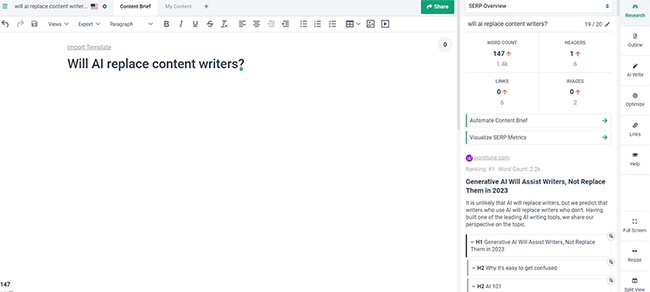
You can start writing in the main window and format the text, add images, etc. from the toolbar at the top, just like you would if you were using Google Docs or Microsoft Word.
On the right-hand side, you’ll see a bunch of useful AI-powered workflow tools to help you craft your content quickly.
Let’s take a look at some of them, starting with the Research tools.
Research tools
Frase can analyze the top 20 search results for your target keyword (search query) and then use the data it gathers to provide you with research, insights, and optimization tips to guide your content writing.
From the content editor, click the Research tab, and you’ll be able to see a list of all the top search competitor articles and the headers they’re using in the content.
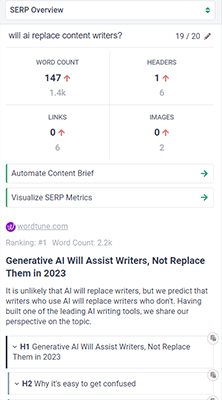
If you want to use one of these headers in your own content, you can click the icon next to it and it’ll be added to the page, ready for you to edit.
You can also paste the whole outline in, explore the page, or have Frase automatically write an FAQ for any competitor article.
Elsewhere in the Research window, you’ll see a target word count, and a recommended number of images, headers, and links. These recommendations are based on Frase’s SERP analysis. The closer you stick to them, the better chance you should have of ranking for the search query.
There are two more features in the Research window worth talking about.
The first is the content brief generator.

Click Automate Content Brief to have Frase generate a comprehensive brief based on SERP analysis for your target keyword and import it into the editor for you or your team to follow.
The brief is there to guide your content writing efforts and can include things like guidelines, topic clusters, questions to add, statistics to include, hyperlink suggestions, and more.
The second feature is the SERP visualizer.
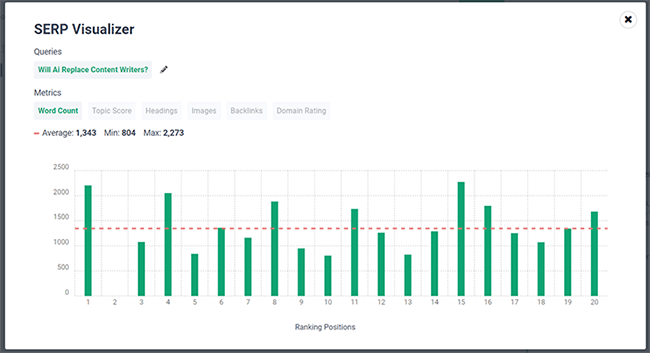
Click Visualize SERP Metrics from the Research tab to open it up, and you’ll be able to analyze all the competitor articles that are already ranking for your target keyword on Google.
You’ll be able to see a bunch of really useful metrics, like each ranked page’s word count, topic score, domain rating, headings count, etc. as well as their ranking position. This makes it easier to evaluate the competition and plan your content accordingly.
AI-powered editing tools
As you write content into the editor, you can improve it using Frase’s AI-powered editing tools.
Highlight any text inside the editor, and a toolbar will pop up. On this toolbar, there are some really cool AI options
For example, you can click the Expand dropdown menu to have Frase elaborate on the content you’ve already written.
In the dropdown menu, click Write about this, and Frase will ‘read’ the content you’ve highlighted and then add a few more sentences/paragraphs to flesh it out with more details, like so:
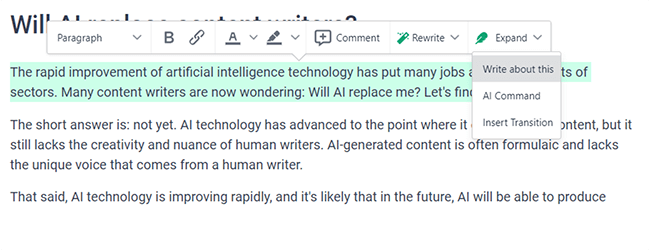
In the above screenshot, the highlighted text was the initial input written by me. Everything else was generated by Frase automatically. And as you can see, it’s pretty good.
Not only is the part written by Frase consistent with the tone of my writing, but it’s on-topic and provides a concise, accurate answer to the main question. And if I didn’t know better, I’d think it had been written by a real human.
There are other things you can do with the Expand tool too. For example, click Insert Transition, and you can tell Frase to add another paragraph starting with a specific transition word.
This is what Frase came back with when I asked it to expand on the text with an As long as transition.
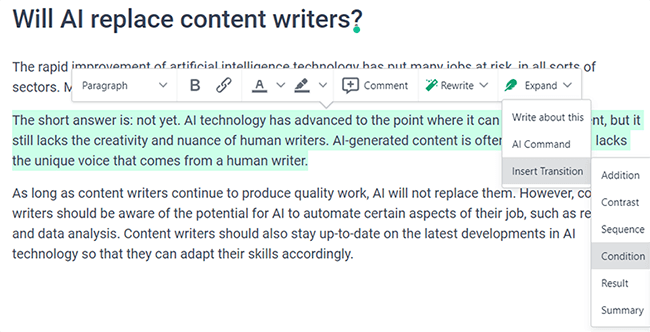
Again, this is pretty convincingly written. I can’t really fault the output here and probably couldn’t have written it better myself.
Aside from the Expand tool, another thing you can do is have Frase rewrite your content automatically.
This is useful if, for example, you want to give your existing content a refresh. Or if you want to write something similar to a competitor article but reword it so that it’s 100% original.

All you have to do is highlight the text, and click Rewrite. Then, choose whether you want to rewrite it sentence by sentence or paragraph by paragraph.
AI writing templates
In addition to helping you edit the content that you’ve written, Frase AI can also help create SEO optimized content completely from scratch.
All you have to do is select a template based on what you want to create, enter some instructions, and Frase will do the rest.
You can access Frase’s AI writing templates directly from inside the content editor by clicking the AI Write tab on the right-hand side:

Or alternatively, you can click AI Tools on the main Frase dashboard:
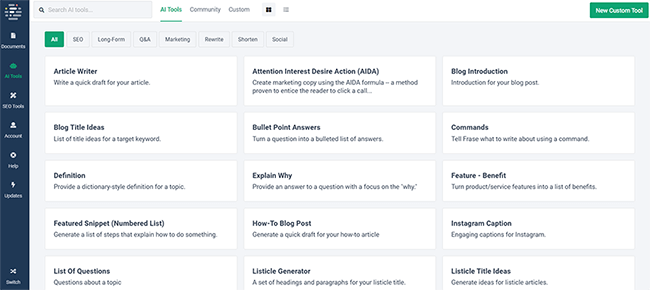
There are dozens of templates to choose from, for all the most common types of content, including:
- Article drafts
- Blog post introductions
- Bullet point answers
- Explanations
- How-to posts
- Instagram captions
- Meta descriptions
- Product descriptions
- Quora answers
- Listicle title ideas
- YouTube video ideas
- And many more.
Obviously, I can’t cover all these AI templates in one review.
But to give you an idea of how the AI writer works, let’s try out a couple of them: a long-form template and a short-form template.
Long-form content generation
To test Frase’s ability to write long-form content, I selected the How-To Blog Post template.
Frase then asks you to input a title and select a Creativity level.
For this test, our title is going to be ‘How to write SEO content’, with a Creativity level of 3 out of 5.
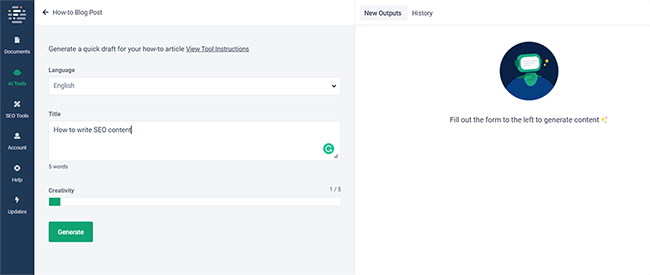
After clicking Generate, this is the output Frase came back with:
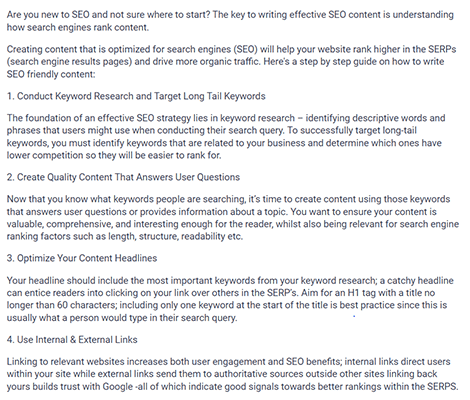
I was pretty impressed with this. It’s a convincingly-written how-to post that answers the question accurately and concisely. The formatting is pretty standard, with listicle-style numbered headlines for each step in the process. And there are little to no grammatical or spelling errors.
Obviously, it’s still not quite as good as something an experienced writer would be able to produce. It lacks detail and is fairly generic, but it’s a good start. A good writer could use this as a foundation and add their own original insights to make it their own.
Short-form content generation
To test Frase’s ability to write short-form content, I selected the Value Proposition template, which writes a statement summarizing how a product can uniquely solve a customer problem.
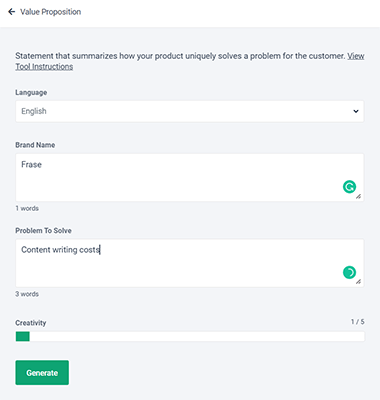
For the product, I chose Frase itself. And under Problem To Solve, I entered ‘content writing costs’.
Here’s what Frase came back with:
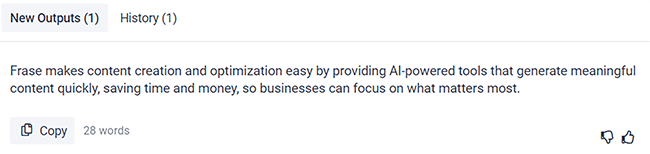
Again, not bad. It’s perhaps a little wordy, but it meets the brief. And it does a good job of summarizing what Frase can do and why businesses might want to use it.
These short-form templates can save a huge amount of time and can help you get through writers block easily.
Community templates
Aside from the few dozen native AI writing templates that Frase comes with, there are also hundreds of other templates built by the Frase community.
To see what’s available, go back to the AI Tools section of the dashboard and then click the Community tab.
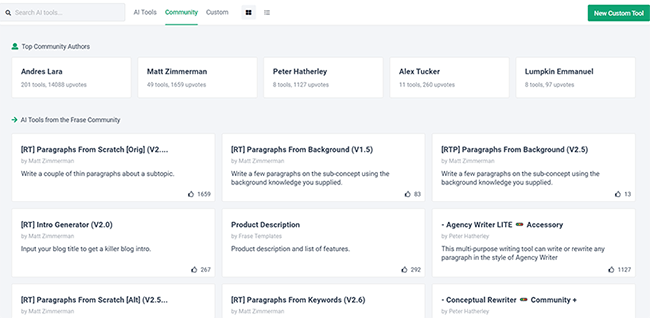
There are a bunch of super creative templates here. For example, there’s a template to:
- Generate pillar-cluster page ideas.
- Create engaging Pinterest headlines
- Write Amazon customer reviews
- Produce prompt lines and storylines for authors
- Create customer polls
Plus literally hundreds more. There’s even a template to generate dinner ideas if you want some help planning out the week’s meals.
Custom AI templates
If you still can’t find a tool that does what you need in the community database, you can build your own custom solution instead.
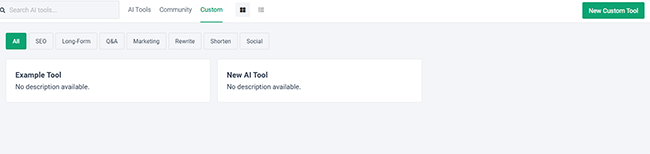
To do so, click New Custom Tool and enter a title, then click Customize AI Tool.
You’ll be brought to the configuration page, where you can build both simple, single-variable AI tools and more advanced multivariable tools.
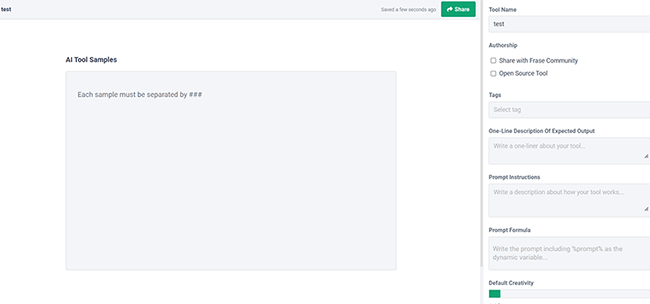
We won’t get into how this works here as it’s a fairly involved process. But once you master it, the sky’s the limit—you can create an AI tool for pretty much anything.
Optimization
Once you’ve created your content, Frase can also help you optimize it for organic search.
First, open up the document you’re working on in the content editor and click the Optimize tab from the right-hand sidebar.
From here, you should be able to see a list of keywords that are related to your main target keyword.
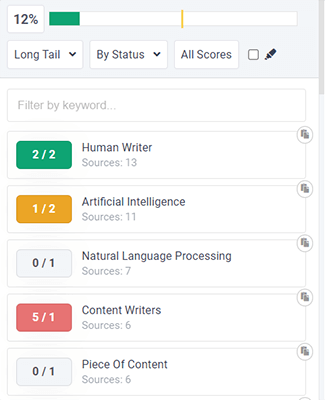
The idea is that each of these keywords appears in the articles that are already ranking on page one of Google for the target search query.
So to improve your chances of ranking for the same query, it’s recommended to include them in your own work too.
As you add more of these terms to your content, your optimization score increases. Frase shows you the current score in the percentage bar at the top of the page.
The yellow line on the bar shows you the average score of your top competitors. If you can get your content to score higher than that line, you should, in theory, stand a pretty good chance of ranking.
Links
Another way Frase can help you to optimize your content for SEO is through internal and external link suggestions.
Just click Links from the sidebar of the content editor, and you’ll see a bunch of recommended External Links.
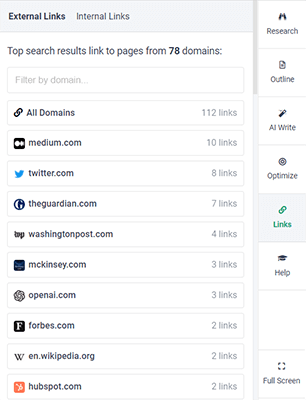
These suggestions are based on SERP analysis—they’re the links that are included in the top-ranking articles for your target keyword.
You can tab over to the Internal Links tab to uncover internal linking recommendations too. However, you’ll need to connect Frase to Google Search Console first, as Frase uses data from GSC to generate its internal linking suggestions.
Chatbot
Another really cool thing about Frase is that it has its own built-in Chatbot, which can help out when you’re writing content.
You can access it from the content editor by clicking AI Write in the sidebar, then switching to the Chat tab.
From here, you can ask any question and the Frase Chatbot will serve up the answers.
For example, I asked it “What are Frase’s biggest competitors?” and it came back with this:
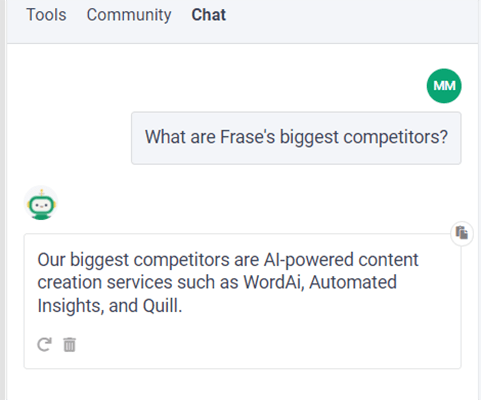
Aside from answering your questions, it also doubles up as a kind of flexible, catch-all AI writing template.
You can input any custom instructions/prompt and it’ll generate content following those instructions.
For example, you could ask it to write a few paragraphs on a specific topic, generate some ideas for FAQs, or come up with an idea for a new fiction novel…. pretty much anything goes.
Sharing and exporting
From the Content Editor, you can click the Share button to grab a link to the document or content brief, which you can then share with your team.
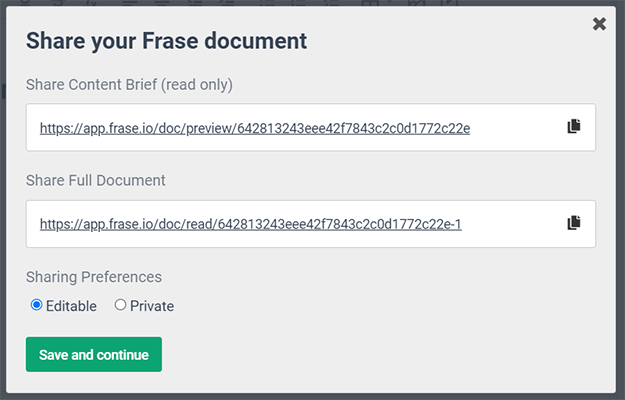
And once the content is finished, you can click the Export button to download it as a PDF, HTML, or Excel file. Or alternatively, select Copy to Clipboard to copy-paste it over to your CMS for easy publishing.
My one gripe with this feature is that there’s no way to export documents as DOCX files.
It seems odd that they give you the option to download your projects as a PDF but not a DOCX file given that the former isn’t editable while the latter is. And I’d have thought that was a fairly straightforward feature to implement.
That said, it’s easy enough to just copy-paste the work over to your chosen document editor (like Google Docs or Microsoft Word) and save it as a DOCX through there, so it’s not a huge deal.
SEO tools
Frase also comes with a handful of useful AI-powered SEO tools that can help you to plan your content strategy.
From your Frase dashboard, click SEO Tools to access them.

There are five to choose from:
- GSC Content Analytics
- Outline Builder
- Wikipedia Concept Map
- Topic Planner
- Article Rewriter
Each of these comes in useful, but our favorite is the GSC Content Analytics tool.
It pulls data from your Google Search Console account and uses it to provide you with useful insights to guide your strategy.
This includes KPIs and performance metrics like Ranked Pages, Impressions, Clicks, etc. for each of your website pages.
It also shows you the top keywords that every page on your site ranks for and your average ranking position.
Now, it’s true that you could get the same data through Google Search Console without paying for Frase.
But what Frase also does is categorize every page on GSC by status. And it gives you powerful filtering options so you quickly identify untapped keyword opportunities, find out what content is decaying (losing ranking positions) and could use an update, and more.
These are all insights you wouldn’t get through GSC alone.
Plus, it’s very useful to have these sorts of strategic insights in one place as it streamlines your workflow.
For example, you could use the GSC Content Analytics features to quickly identify decaying content. Then, import the content from those decaying pages into Frase, run it through the Article Rewriter to refresh it and give it an update, and publish it again.
In addition to the GSC Content Analytics tool, we also like the Topic Planner. It’s more or less a very basic keyword research tool, but without the usual keyword metrics.
You just type in a seed keyword, and Frase will extract a ton of related long-string keywords from the SERPs.
These keywords are grouped into topics and sub-topics. And you can click on any sub-topic to add it to your Content Plan.
Integrations
Aside from Google Search Console, Frase also integrates with Google Docs and WordPress.
To connect them, navigate to Account > Integrations. Then, select either Install Add-On or Install Plugin as required.
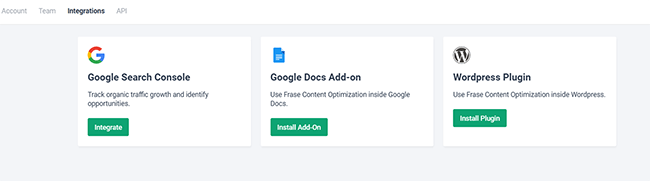
Once you’ve done that, you’ll be able to generate AI content directly in Google Docs or WordPress, so you no longer have to copy-paste your work over from Frase’s content editor.
Frase Answers
So far, we’ve only looked at the features included in Frase Content. But there’s also Frase Answers, which is an entirely different product.
You can switch over to it by clicking the Switch icon at the bottom of the main dashboard area.
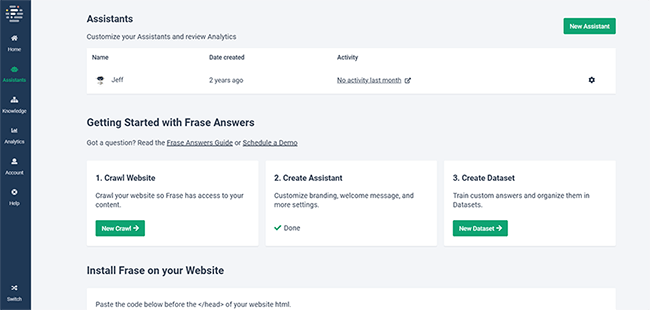
Frase Answers lets you build your own custom chatbot (or Answer Assistant) and install it on your website for visitors to use.
It works like this:
First, click New Crawl and connect it to your website. Frase will then crawl your entire site to create an intelligent knowledgebase with the information it gathers from your web pages.
This is an important step, as the chatbot you build will use this knowledgebase to intelligently answer user questions, without relying on complex decision trees.
After that, click Create Assistant to customize the way your chatbot looks and add your own welcome message, name, etc.
Next, click New Dataset to start ‘training’ your chatbot with custom answers, then use the Test Sandbox to check its performance.
When you’re ready, you can install it on your website by inserting 1 line of code. And it’ll be ready to start answering questions from your website visitors.
How much does Frase cost?
Frase offers three subscription plans for you to choose from: Solo, Basic, and Team.
All the plans include the same core features (automated content briefs, outline builder, content scoring, content editor, etc.) but each has different usage limits.
The Solo plan costs $14.99/month (or $12.66/month when paid annually) and is the best choice for occasional users who only publish a few articles per month.
It comes with 1 user seat and lets you write and optimize a maximum of 4 articles each month.
The Basic plan costs $44.99/month ($38.25/month if paid annually) and is a better choice for users who need to write and optimize articles more frequently, like high-volume bloggers and professional content writers.
It still only comes with 1 user seat but lets you write and optimize up to 30 articles per month.
The Team plan costs $114.99/month and is the best choice for marketing agencies and teams.
It comes with 3 user seats (plus the option of purchasing additional seats for an extra $25/month each) and lets you write and optimize an unlimited number of articles.
It’s important to note that all plans are capped at 4,000 AI-generated words per month unless you purchase the Pro Add-On.
The Pro Add-On costs an additional $35/month but gives you unlimited AI words plus other premium features like keyword search volumes and SERP data
Free trial available with 1 document and search query, along with 5,000 AI-generated words.
Frase pros and cons
Now that we’ve explored all of Frase’s features and pricing plans, here’s a summary of some of the biggest pros and cons:
Frase pros
- Research and write briefs faster. The way Frase’s content research feature works is excellent. Being able to quickly scan through titles, word counts, and headings used by competitors helps a lot. And having the ability to automatically generate a content brief is especially useful.
- Easy content optimization. I’ve been doing SEO for years and the most effective way to optimize content is based on what currently ranks. Frase makes this process easy and provides solid recommendations to get your content optimized.
- Outstanding output quality. The quality of the written content Frase is able to generate is excellent. This probably has something to do with the fact that Frase’s AI is powered by OpenAI’s GPT-3 model, which enables it to write like a human very convincingly.
- Very flexible. What makes Frase better than most other AI writers is how flexible it is. Thanks to the community feature, there is a near-limitless number of templates to choose from covering every use case imaginable. And you can even program your own templates with the Custom Tool feature.
- Nice user interface. I really liked Frase’s UI. Of course, a lot of this comes down to personal preference. But personally, I think Frase’s interface is more intuitive than most, and I found it a lot easier to work with. The layout is clean and simple and all the tools work together seamlessly in a way that makes sense for a typical content writer’s workflow.
- Google Docs integration. I find it a lot easier to optimize content as I write it in Google Docs. So, I definitely appreciated this feature and I’m sure others will.
Frase cons
- Only very basic keyword research functionality. Unlike some of its competitors, Frase doesn’t really offer a keyword research tool out of the box. The Topic Planner feature can help you discover long-string keywords, but the suggestions it generates aren’t the best, and it doesn’t give you metrics like monthly search volume or keyword difficulty to analyze opportunities.
- Pro Add-On is more or less essential. The base price of Frase’s subscription plans is very affordable. However, when you factor in the cost of the Pro Add-On it becomes much more expensive. And the add-on is pretty much essential if you plan on producing a high volume of content as without it, you’re capped at 4,000 AI words/per month.
Frase alternatives
If you don’t think Frase is the right AI writer or content optimization tool for your needs, you might prefer one of these Frase alternatives:
Scalenut
Scalenut is another AI-powered content and copywriting platform. Like Frase, it’s a flexible solution that comes with over 40 AI tools/templates, as well as other SEO and content marketing features.
It’s in a similar price range to Frase but offers 100,000 AI words on its entry-level plan, which is significantly more than Frase. This makes it a better solution for users who need to produce a lot of content but are on a tight budget.
Surfer SEO
Surfer SEO is our favorite Frase alternative. It’s more of an optimization toolkit for content writers than an AI writer and stands out for its best-in-class SEO scoring and optimization recommendations.
We use Surfer SEO to put together content briefs, write and optimize blog posts, and uncover new SEO opportunities.
That said, we’re on a legacy account that is much more cost effective. If we didn’t have that account, we’d go for either Frase or Scalenut instead.
Final thoughts on Frase
That concludes our Frase review.
We’ve tried a lot of AI writers. And the thing that stood out the most to us about Frase AI is how feature-rich it is.
There’s a lot to it, with dozens of native AI templates, hundreds of additional community-built tools, a chatbot, editing tools, optimization recommendations, SEO tools, and more.
But despite that incredibly broad feature set, it’s still super easy to use. And the AI content output is impressive.
All in all, Frase is definitely one of the better AI writing tools out there. But nonetheless, it can’t fully replace an experienced writer just yet.
The best way to use Frase is to speed up your workflow and writing process. It can get some words onto the page to give you off the mark, but it’ll probably still need to be edited or rewritten by a real human to get it ready for publication.
You can try Frase out for yourself by signing up for a $1 trial. Click the button to get started.
The post Frase Review appeared first on Business For AI Guide.
]]>The post Murf Review appeared first on Business For AI Guide.
]]>Let’s get started.
What is Murf AI?
Murf AI is a powerful AI voice generator that enables you to create realistic-sounding voiceovers for your projects. It uses machine learning through generative AI to work its magic. Unlike most AI voice software, Murf’s voices sound human. They offer more than 120 of them, each with different characteristics and styles, so finding one that meets your needs is a breeze.
That said, it’s more than just a voice generator. It can help you create videos, too. It’s not a traditional AI video generator where you generate a video from a text prompt. Instead, it provides millions of stock music, image, and video assets that you can use to create videos for the web, social media, marketing or training videos, and more.
Benefits of Using Murf AI
Murf AI is a powerful software that has many benefits. Whether you’re a business professional looking to save time and money or a novice marketer looking for tools to help you expand your reach, Murf AI is a solid tool for generating voiceovers for your projects.
Some benefits include:
- Saving time and money: You can create natural-sounding voiceovers in a few clicks, negating the need to hire professionals or spend hours editing them.
- Choices: Murf AI provides over 120 voices available in 20 languages, so you’ll never run out of options.
- Media assets: Murf AI offers millions of media assets you can use to create quick videos inside the editor. You can also upload your videos and other media assets for on-brand results.
- Customization: The voice editor allows you to change the pitch, tone, and speaking style to create the perfect voice for your projects.
- Ease of use: One of the strongest arguments for using Murf is its intuitive dashboard. There are only a few tools to learn, and the interface is simple.
Murf AI Features
The folks at Murf offer many features to create voiceovers for your projects. Let’s review them to better understand what you have at your disposal should you sign up for it.
Text-To-Speech
Murf AI’s text-to-speech feature is, in our opinion, its best feature. As previously mentioned, they offer 120 AI voices and 20 languages, so you can be certain you’ll find the perfect fit for your projects. With simple tools, you can edit your voice’s style, tone, speed, and other characteristics. It also allows you to add pauses in the right places, making voices sound incredibly human.
Canva Add-On

If you’re a Canva user looking to incorporate voiceovers into your projects, you’re in luck. Murf has full integration with Canva, allowing you to easily import voiceovers. They can be used in Facebook or Instagram videos, AI presentations, and more.
AI Voice Cloning
Another great feature of Murf AI is its voice cloning feature. However, it’s only available as a separate purchase. It works by recording your voice and then uploading the voice samples to Murf’s team so they can build a custom AI voice for you. You’ll need professional equipment for the best results, but in the end, you’ll have an exact clone of your voice to use in all your projects. This tool is great for medium to large businesses who want to streamline the process of voiceovers while saving time and money.
Voice Over Video

Suppose you have a video but need a quick and easy way to add narration. In that case, Murf AI’s voiceover video feature is the perfect solution. Whether you’re creating a catchy commercial, an engaging video tutorial, or even a comprehensive learning management system (LMS), this tool has you covered. The best part? You can unleash your creativity by accessing millions of images, music, and video assets to create video from scratch. Their AI voices range from young and old to different ethnicities, genders, and characteristics, giving you plenty of choices for your project. With that said, we found the video preview feature a bit buggy in our testing, so keep that in mind.
Google Slides Add-On

You’re in luck if you want to add voiceovers to your presentations and use Google Slides. Murf AI offers a handy add-on, allowing you to easily add spoken words to your slides. It integrates directly with GS, so you can write and edit your voiceover script as your work. The best part? You’ll have access to all of the voices in your plan – directly within the GS interface. Additionally, the AI will choose the best voice for your project based on the content within your presentation.
Murf API
Do you need AI voice integration on your application or website? With Murf API, you can do it. As with the voice cloning feature, you’ll need to request Murf to develop a custom solution. The API comes with more than 40 available voices you can use. However, you must purchase this feature separately, as it’s not part of their subscription plans. The cost of API integration is steep for smaller businesses, costing roughly $ 3,000 per year. That said, if you are part of a large business or corporation, this is a steal compared to the cost of hiring voice actors.
Murf AI Pricing

If you’re considering signing up for Murf AI, you’ll be pleased to know that the pricing is very affordable. They offer a free tier and three paid plans, so there’s something for everyone. The free plan comes with 32 AI voices, 10 minutes of voice generation, 10 minutes of transcription, and up to three users. The downside to the free plan is that you can’t download anything you generate. However, it is a great way for users to test Murf and decide if it’s the right choice.
The Basic Plan includes unlimited downloads, 60 basic voices, access to 10 languages, 24 hours of voice generation per user per year, and over 8000 licensed soundtracks. Basic starts at $19 per user per month, billed annually. The Pro plan offers the benefits of Basic but adds access to all 120+ AI voices, 20+ languages, the AI voice changer, commercial usage rights, and high-priority support for $26 per month.
Finally, the Enterprise plan will cost you $75 per month for 5 users. It offers all of the benefits of Pro but sweetens the deal with unlimited voice generation, transcription, and storage. You’ll also receive a dedicated account manager, advanced collaboration tools, and a security assessment. This is especially important because of the voice cloning feature. With deep fakes becoming a real concern, there is the potential for nefarious actors to gain access to your content to impersonate others.
How to Use Murf AI
Murf AI offers many compelling features but shines with text-to-speech. To put it plainly, they absolutely nail it. Most of its voices are really good. In most instances, it’s hard to tell the difference between human vs AI. It offers a simple interface, so you won’t get bogged down trying to learn complicated software. You can write directly in the editor or paste it from various sources, including AI writing software.
To demonstrate how simple it is to create a voiceover, we’ll walk you through the interface and the steps needed to make your first voiceover.
Start by navigating to the Studio Home Screen, then click the Create Project button.
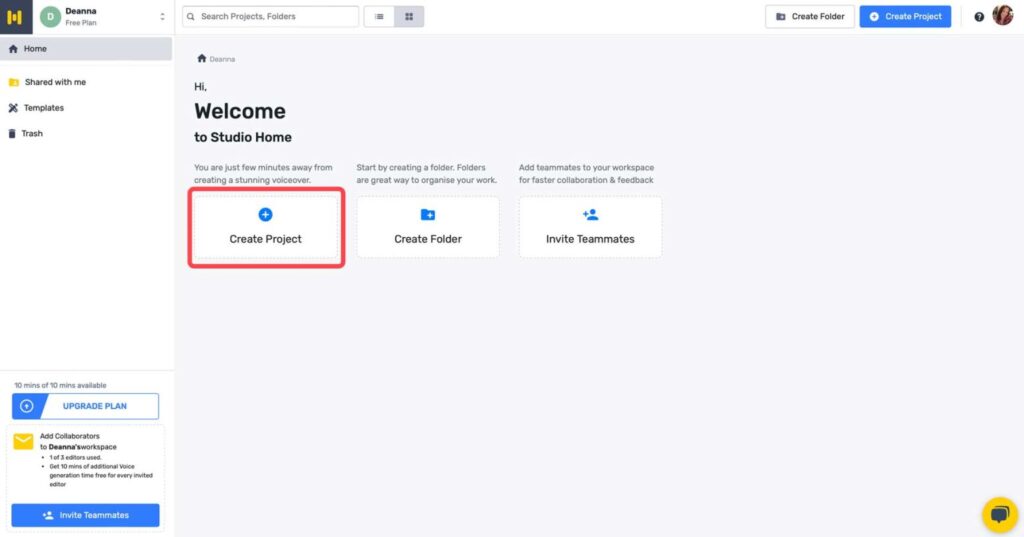
Next, give your project a name (1), select the video tab (2), choose social media as the format (3), and click the Create Project button (4).
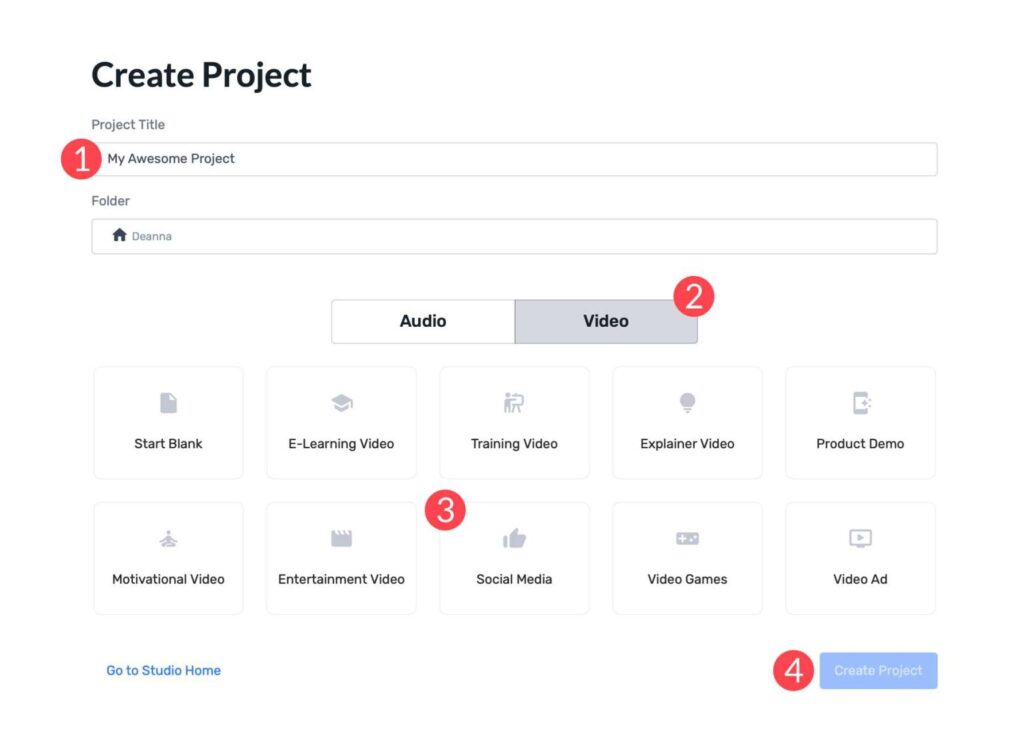
Choosing a Murf AI Voice for Your Project
On the next screen, you’ll complete a series of steps to create your video. First, you’ll need to select an AI voice for your video. For this tutorial, we’re using the free version of Murf AI, which gives us over 30 voices to choose from. Go ahead and click on Explore AI Voices (1), or click the dropdown (2) at the top of the text field.
If you’re following along with the free version, toggle Hide Pro Voices to view the available voices.
When browsing, you can drill down more using the provided filters. They include US, UK, and Australian voices, sorted by gender, age group, or use case.
We’ll use Ava for our video because she has the most natural-sounding voice for our project. However, feel free to preview each one to determine which one works best for your situation. Once decided, click the select button.
Adding a Video Script
The next step requires you to write a script for your video or use another program such as Jasper, ChatGPT, or an alternative to write it for you. We’ll ask Jasper to write a short script about 5 web design trends. Next, we’ll select the YouTube script outline tool, add our title, and set a witty tone of voice for our video.
We’ll copy the first section of the script and paste it into Murf AI. Click the play icon on the right to generate the audio clip. Once complete, you can preview your clip using the same button.
Once your audio is generated, you can preview the audio using the same play button. Murf AI comes with a few settings to help you adjust the output. These include tone (1), pitch (2), speed (3), and the ability to add a pause (4). These come in handy if the generated voice is too computer-like, has awkward run-on sentences, or needs to be adjusted to a lower or higher sound (pitch).
Click the + Add a Block button to add more text.
Adding Media To Murf AI Project
In addition to text-to-speech, Murf AI offers its users stock media assets you can use in your projects. These include stock music, images, and videos. To add media, click the Add Media tab in the dashboard.
You can search the media library for assets to build your video from there.
Click on any media to preview it. You can easily add it to your project by clicking the Add to Timeline button.
Using the Voice Changer Feature
If you prefer, you can add an audio sample and allow Murf AI to transcribe it. It’ll use its proprietary algorithms to analyze your sample and convert it to written text. Once completed, it will automatically be added to the timeline, where you can edit it. At that point, you can make audio edits as necessary for tone or pitch, choose an AI voice, and generate a voiceover in seconds.
Creating an AI voiceover with Murf AI is easy, and the voices are quite good. As an added bonus, Murf AI does an excellent job of allowing its users to customize AI models to get the most realistic sound possible. However, it’s important to mention that when using the free version, you won’t be able to export your projects. However, they are saved in your user account, should you decide to upgrade.
Pros and Cons of Murf AI
To be transparent for our readers, weighing the pros and cons of subscribing to Murf AI is important. While there are a lot of pros, including the wide range of AI voices available, there are some cons that you should be aware of.
Pros of Using Murf AI
- Over 120+ realistic AI voices with support for 20+ languages
- Saves time and money over hiring professional voice actors
- Simple interface
- Many ethnicities, tones, and styles to choose from
Cons of Using Murf AI
- The free plan doesn’t allow downloads
- Customization of pitch and tone could be better
- Potential security concerns with voice cloning
- In our experience, the voice-over-video tool is a bit buggy at times
Final Thoughts on Murf AI
Murf AI is a versatile and valuable tool for creating voiceovers for presentations, videos, and more. With more than 120 natural-sounding voices and support for more than 20 languages, it saves time and resources and simplifies creating compelling voiceovers.
However, it’s important to note that Murf AI isn’t without its flaws. There are occasional bugs with the voice-over-video tool and a need for better customization options for pitch and tone. Despite that, Murf AI stands out above its competition due to how realistic its voices are. If you need a quick way to generate natural-sounding voiceovers, you’ll be hard-pressed to find a better solution than Murf AI.
The post Murf Review appeared first on Business For AI Guide.
]]>The post QuillBot Review appeared first on Business For AI Guide.
]]>First off, it’s fantastic at rephrasing content, which helps you avoid plagiarism and make your writing clearer and more engaging.
This is especially useful for professionals who need to rework existing material into something fresh and original.
Another big win for QuillBot is how it handles proofreading and editing.
With its strong grammar and spell-checking features, you don’t have to stress over small errors. It catches mistakes and cleans up your text quickly and accurately.
This can save you a ton of time and make sure your writing looks professional without the hassle of manual corrections.
If you’ve ever had to slog through a long document to find the key points, you’ll love QuillBot’s summarization tool.
It boils down lengthy texts into bite-sized summaries, making it quicker and easier to get the gist of the content.
This is a huge time-saver, especially for students and researchers dealing with tons of reading material.
For academic writing, QuillBot’s plagiarism detection is super useful. It checks your work for copied content, ensuring everything is original and properly cited.
Beyond these benefits, how does it measure up? Let’s take a quick look before diving into the full review.
QuillBot Review: A Quick Look
Ease of Use: 4.5/5
Price: 5/5
Features: 4.5/5
Content Accuracy: 3.5/5
QuillBot is an AI-powered writing assistant designed to make your writing process faster and higher quality.
Its user-friendly interface is easy to navigate and provides all features ready-to-use in a side panel.
It provides a suite of features, including paraphrasing, grammar checking, summarizing, plagiarism detection, and citation generation.
They work together to enhance your writing, save time, and ensure work is polished and professional.
Pricing is fair, too. There’s a free plan with basic features and a premium subscription that unlocks the full range of tools.
In terms of content accuracy, QuillBot generally performs well, especially with grammar and spell checking.
However, its paraphrasing and summarization tools can sometimes produce results that need minor adjustments to maintain the original meaning and context.
We’ll put the tool to the test more thoroughly in just a moment. But first, let’s talk about what QuillBot is and its company history.
What is QuillBot?
QuillBot is an AI writing assistant that helps improve your writing.
It helps with paraphrasing, grammar checking, summarizing, plagiarism detection, and citation generation.
Whether you’re a student, professional, or content creator, QuillBot makes writing easier, faster, and more accurate.
Launched in 2017 by Rohan Gupta, Anil Jason, and David Silin, the team wanted to create an AI tool to help rephrase text.
Over the years, it added new features like grammar checking and summarizing. These additions rival tools like Grammarly and help distill lengthy texts into key points.
Today, QuillBot serves millions of users worldwide and offers free and premium plans to meet different needs.
Ease of Use
QuillBot is renowned for its intuitive and user-friendly interface. It’s accessible to almost everyone, from beginners to experienced writers.
The platform’s straightforward design lets you easily switch between tools like paraphrasing, grammar checking, and summarizing.
This ease of navigation streamlines the writing process and enhance your productivity.
While researching this review, I’ve noticed that users often praise QuillBot for its simplicity.
The platform holds your hand throughout the writing (or rewriting) process.
It provides clear instructions and helpful prompts. This makes it easy to get started and see immediate benefits in your writing.
I appreciate how the interface isn’t cluttered, too. Presenting too much at once can be overwhelming with some other writing tools.
Instead, QuillBot focuses on providing a streamlined experience with all tools listed on the left side of the screen.
This design ensures you’ll spend more time writing and less time figuring out how to use it.
Pricing
QuillBot offers both a free and premium plan, catering to different user needs and budgets.
The free version provides access to basic features, including limited paraphrasing and summarizing capabilities.
For those who need more advanced tools, the premium plans offer additional benefits such as extended character limits, multiple writing modes, and faster processing speeds.
Here’s a closer look at the two available plans:
- Free Plan: Includes 125 words, Standard and Fluency paraphrase modes, and the ability to summarize up to 1200 words of text.
- Premium Plan: $8.33 per month/billed annually or $19.95/monthly and includes unlimited words, 9 writing modes, the ability to paraphrase in 23 languages, and much more.
Support
QuillBot’s customer support is generally well-regarded, although some users have noted that response times can be slower than expected, even for premium users.
The platform provides support through email. There’s also an extensive help center available on their website, which includes FAQs, tutorials, and troubleshooting guides.
User reviews indicate that people appreciate the quality of support when received.
QuillBot Pros
- Advanced AI: Uses advanced AI to do more than just replace words. It understands the context of your writing and rewrites content to improve quality.
- Summarizer is a time-saver: One of my favorite features is the summarizer tool. It’s ideal for condensing large amounts of information quickly. Whether you’re a student summarizing research articles or a professional condensing lengthy reports, it saves you a ton of time.
- Free version: The free version includes basic paraphrasing and summarizing tools, so you can test the service and see if it meets your needs before committing to a premium plan.
- Browser and software integration: QuillBot integrates with browsers and software. With a Chrome extension and a Microsoft Word add-in, you can access features directly within your favorite writing environments.
QuillBot Cons
- Word limits in both free and premium plans: QuillBot imposes word limits on both free and premium versions to some degree. This can be restrictive for users who need to process large volumes of text regularly. The premium plan allows for unlimited paraphrasing but limits plagiarism prevention to 25,000 words/month and text summarizing to 6000 words/ month. It’s something to keep in mind if you often work with lengthy documents.
- Inconsistent paraphrasing quality: While QuillBot generally performs well, sometimes the paraphrased text isn’t entirely accurate. You might need to manually adjust the text to maintain the intended meaning.
- Slow customer support: In my research, I’ve noted that some users have reported slow response times from customer support. This can be frustrating, especially for premium users who expect quicker assistance.
What Do People Think About QuillBot?
QuillBot has mixed reviews from users, reflecting a range of experiences with the tool.
Here’s a snapshot of what people are saying:
Positive Feedback
Many users appreciate QuillBot’s ease of use and effectiveness in improving writing.
They find it particularly helpful for paraphrasing, grammar checking, and summarizing.
The platform’s straightforward interface and integration with tools like Chrome and Microsoft Word have been praised for their convenience.
Steven on Product Hunt mentioned:
“I use QuillBot on a daily basis for both academic and work-related writing and couldn’t go without it. I prefer it over leaders in this space such as Grammarly and Wordtune because of how intuitive the product is and the consistent innovation being added by the team behind it”.
Criticisms
On the flip side, some users have reported issues with the premium version. Some features don’t work as expected, such as the AI writer.
Another common complaint is the slow response time from customer support.
The feature range is generally enjoyed but some report issues with the synonym slider.

“The price is right, and it works decently. It is definitely a much better improvement on the old content spinners. You can set the level of ‘creativeness’ or whatever they call it. The higher it is the less it will make sense”.
While QuillBot is praised for its functionality and user-friendly design, some areas, such as customer support and certain premium features, could use improvement.
QuillBot vs Grammarly vs WordTune
Sometimes, it’s helpful to see how a tool compares to its direct competitors, side-by-side.
To that end, here’s a detailed comparison of QuillBot, Grammarly, and WordTune based on key factors:
| Feature | QuillBot | Grammarly | WordTune |
|---|---|---|---|
| Ease of Use | Intuitive interface, integrates with Chrome and Word | User-friendly, real-time suggestions, detailed sidebar | Clean interface, desktop apps for Mac, Windows, Linux |
| Pricing | Free plan; Premium: $8.33/month when billed annually; $19.95/monthly. | Free plan; Premium: $30/month, $60/quarterly, $144/year | Free plan; Advanced: $13.99/month or $6.99/month billed annually; Unlimited: $19.99/month or $9.99/month, billed annually |
| Support | Slow response times reported | Detailed support, fast responses for premium users | Responsive support, comprehensive guides and resources |
| Features | Paraphrasing, summarizer, grammar check, citation generator, plagiarism checker | Grammar and spell check, writing goals, plagiarism checker, tone detector, GrammarlyGo | Rewrite suggestions, tone adjustments, summarizer, spices feature, no plagiarism checker |
| Who is it for? | Students, academics, content creators | Professionals, writers, teams | Writers, professionals |
To summarize the above:
QuillBot is known for its intuitive interface, making it easy to navigate and integrate with Chrome and Word.
It offers a free plan with essential features and a premium plan at $8.33 per month if paid annually. It provides tools like paraphrasing, summarizing, grammar checking, citation generation, and plagiarism detection.
Grammarly also provides a user-friendly experience with real-time suggestions and a detailed sidebar for comprehensive editing.
Its premium plan is pricier at $30 per month. It includes advanced features like writing goals, a tone detector, and GrammarlyGo for content creation.
Premium users benefit from detailed support and fast response times.
WordTune features a clean interface and desktop apps for various operating systems.
It offers a free plan, with advanced options at $13.99 monthly or $6.99 annually.
WordTune excels in rewriting suggestions, tone adjustments, and summarizing, though it lacks a plagiarism checker.
Support is responsive, with comprehensive guides and resources available to users.
How Does QuillBot Work?
QuillBot is an advanced AI writing assistant designed to help you craft clear, polished, and professional content.
It relies on machine learning models to understand and generate text that mimics human writing to make your work more fluent and cohesive.
Overview of Primary Functions
Here’s what QuillBot promises to do for you:
| Feature | Description |
|---|---|
| Paraphrasing Tool | Rephrases text to avoid plagiarism and enhance readability. Offers standard, fluency, creative, and formal modes, with a synonym slider for vocabulary control. |
| Grammar Checker | Ensures text is free from grammatical errors and awkward structures with real-time corrections and suggestions. |
| Summarizer | Condenses lengthy text into concise summaries. Options for key sentences or paragraph formats. |
| Plagiarism Checker | Scans content against a vast database to ensure originality; crucial for academic and professional integrity. |
| Citation Generator | Supports APA, MLA, and Chicago styles for creating accurate citations, simplifying the referencing process. |
Learning Models and AI
QuillBot’s AI models are trained on extensive datasets that encompass grammar, spelling, punctuation, tone, sentence structure, and clarity.
The AI continually learns from user interactions, refining its suggestions based on what is frequently accepted or ignored.
This feedback mechanism helps QuillBot provide more contextually appropriate and accurate text modifications over time.
For instance, if many users ignore a particular synonym suggestion, the AI adjusts its recommendations to offer alternatives that better fit the context.
This continuous learning process ensures that QuillBot remains effective and improves its functionality based on real user data.
Integration and Accessibility
QuillBot is designed to be highly accessible. It offers integration through a web-based interface, Chrome extension, Microsoft Word add-in, and a desktop app for macOS.
These options allow you to incorporate QuillBot’s tools into your existing workflows.
How To Use QuillBot
QuillBot offers many tools designed to enhance your writing experience.
Here’s how to get started and make the most of its features:
Paraphrasing Content
One of the primary features on offer here is the Paraphraser. Once you create an account, using it is straightforward.
- Log into your QuillBot account.
- Select Paraphraser from the left hand side panel.
- Type or paste the text you want to paraphrase into the input box
- Choose a paraphrasing mode like Standard, Fluency, or Creative from the Modes listed at the top of the text box.
- Use the Synonym Slider to control how much of the text changes.
- Click the Paraphrase button and review the output on the right side of the screen.
- Click on words to see alternative suggestions and make adjustments.
You can also import documents to paraphrase (or complete any of the other processes QuillBot offers).
To do this, simply open the tool you’d like to use and click the Upload Doc button at the bottom of the text box.
Supported formats include DOCX and PDF.
Once imported, you can use QuillBot’s tools to edit and enhance the text directly.
Summarizing Text
You can also use QuillBot to summarize text. To do this, you’ll need to be logged into your account.
Once you are, complete the following steps:
- Click Summarizer in the left hand side panel.
- Input text into the text window or upload a file you’d like to summarize. I’ve used the “Cons” section from earlier in this article as the sample text.
- Select keywords at the bottom of the window to ensure the summary focuses on the correct aspects of the text.
- Select what type of output you’d prefer: Paragraph, Bullet Points, or Custom.
- Select the length of the output.
- Click Summarize.
Using the AI Detector
The AI Detector is free to use but you can process more words with the premium plan.
To use it, log into QuillBot then:
- Click the AI detector tool on the left panel.
- Paste your text into the detector or upload a file.
- Click Analyze text. The detector will analyze your text and provide feedback on its originality and whether it appears AI-generated or human-written.
Using QuillBot Flow
QuillBot Flow is an all-in-one writing space that integrates multiple tools in one location:
- Access it from the main QuillBot dashboard in the left-hand side panel by selecting QuillBot Flow.
- You can take multiple approaches to get started. You can click New Project and select Blank, or import from Computer, MS Word, or Google Docs.
- You could also select From Templates, and start your project from a template like a blog post or essay.
- You could also begin with Smart Start and select if you’d like to create an essay, blog, or research paper and input a description of what it should be about. I’ve opted to create a blog post about why cats make the best pets.
- The project opens and you can begin working. It generates an outline automatically for you.
- From here, you can start to write your content. You can write it all yourself or lean on the autocomplete, which will suggest sentences and phrases to finish your thoughts.
- You can also click the lightning bolt icon next to the text window to open the Flares options. Here, you can have the AI finish your sentences, suggest new ideas, offer examples, and counter examples.
- You can then choose to accept the generated idea or see another.
- Within Flow, you can then paraphrase and summarize text without switching between different tools.
- Use the integrated research capabilities to find and cite sources directly within your document.
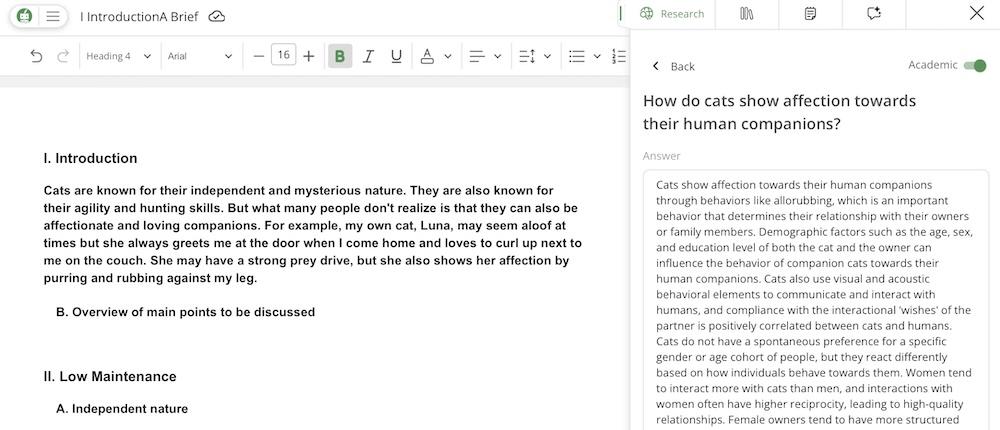
Using Academic Features (Citations, Sources, Research)
There are several academic features included here, so let’s briefly talk about how to use each.
First, the Citation Generator:
- Select the Citation Generator from the toolbar.
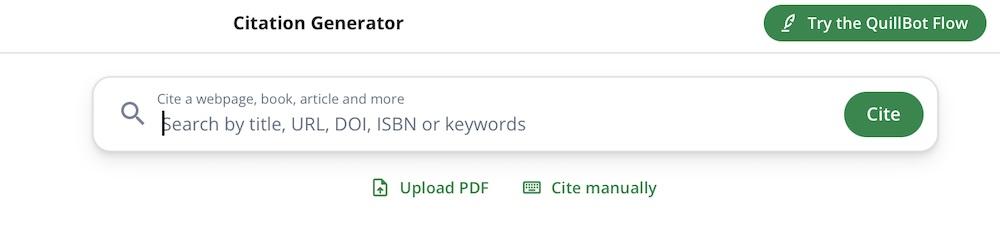
- Search for the name of the book, magazine, or URL you’d like to cite.
- Once the search is completed, it will output a formatted citation for you.
- You can adjust the citation style to your needs by scrolling down to New List and clicking the dropdown menu. Here, I’ve selected the Chicago Manual of Style.
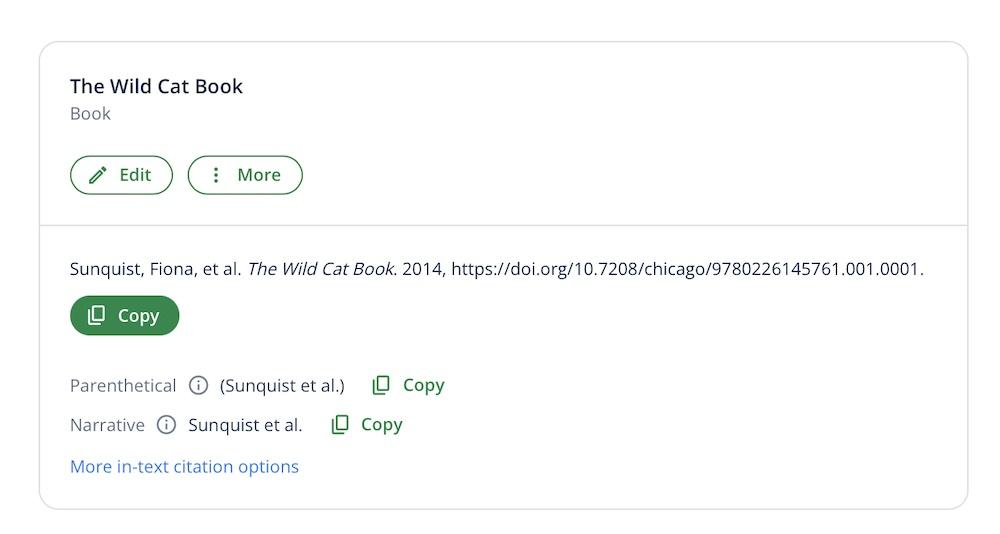
We’ve already discussed the Research tool, as it’s included in QuillBot Flow. But there’s also a Plagiarism Checker.
Here’s how to use it:
- In the QuillBot dashboard, click Plagiarism Checker.
- Paste text you’d like to check or upload a file. Then click Scan.
- The tool will then tell you how many words will be scanned and give you the chance to approve it. If you approve, click Yes, scan.

- Once completed, you’ll see a results page, which shows the results found, similar words used, and the percentage the text matched other text.
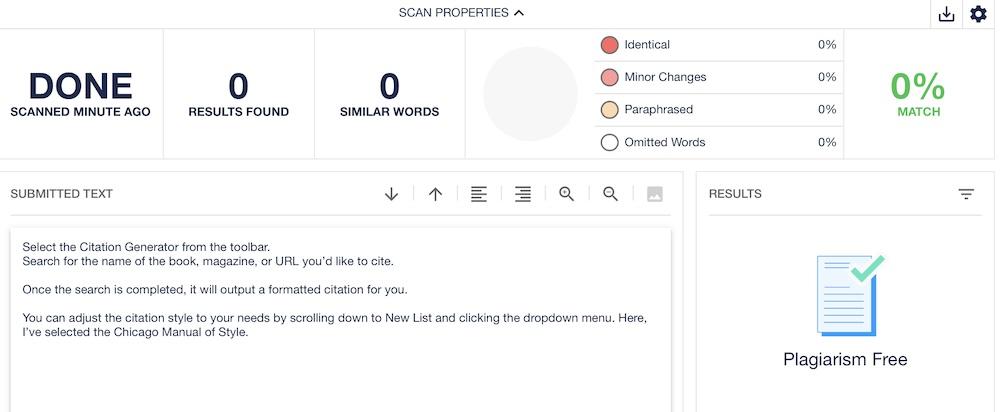
12 Features That Make QuillBot Stand Out
QuillBot offers a range of features designed to enhance your writing experience, as you’ve already seen.
But what sets it apart from other tools?
Here’s a detailed look at what makes QuillBot a powerful tool for writers, students, and professionals:
1. Paraphraser
QuillBot’s paraphrasing tool allows you to rephrase sentences, paragraphs, or entire articles to improve clarity and readability while avoiding plagiarism.
It offers multiple modes, ranging from creative to formal, to cater to different writing needs.
The Synonym Slider lets you adjust the level of vocabulary change. Though the more changes you permit, the more likely meaning will be lost.
2. Grammar Checker
The grammar checker identifies and corrects grammatical errors, enhancing the overall quality of your writing.
It provides real-time suggestions and explanations, helping you learn and improve your grammar skills as you write.
3. AI Detector
QuillBot’s AI detector analyzes your text to determine if it appears AI-generated or human-written.
It ensures your content maintains a natural, human-like quality.
4. Plagiarism Checker
This feature scans your text and assesses if it’s been copied from another source.
This is essential for academic and professional writing. It can help you avoid unintentional plagiarism by identifying duplicate content and ensuring proper citation.
5. Summarizer
QuillBot’s summarizer condenses long articles, papers, or documents into concise summaries and highlights the key points.
This is particularly useful for research and study, allowing you to quickly grasp the main ideas of extensive texts.
6. Translator
The translation tool supports multiple languages and allows you to translate text efficiently.
It’s beneficial for multilingual users and those working with international content.
7. Citation Generator
QuillBot’s citation generator helps you create accurate citations in various styles, including APA, MLA, and Chicago.
It simplifies the process of referencing sources, ensuring that your academic and professional documents are properly cited.
It just takes one click to reformat your citations into another style, which is a neat trick.
8. App and Extension Integration
QuillBot integrates with popular web browsers like Chrome and productivity applications like Microsoft Word and Google Docs.
It also has a desktop version. After downloading the QuillBot for macOS app, it integrates into various tools including Mail, Notes, and Messages.
These extensions enhance your workflow by allowing you to use QuillBot’s features directly within your preferred writing environments.
9. Smart Start
Smart Start guides you through the initial stages of your writing process. It offers suggestions and structure to kickstart your projects.
This feature is a part of QuillBot Flow. It helps overcome writer’s block and ensures a smooth beginning to your writing tasks.
10. Project Templates
QuillBot Flow also provides various project templates that cater to different writing needs. Everything from academic essays to business reports are represented here.
These templates offer a structured approach to writing, saving you time and effort in organizing your content.
11. Integrated Research
The integrated search feature allows you to conduct research directly within QuillBot.
You can find and cite sources without leaving the writing platform. Talk about a productivity boost!
12. AI Review
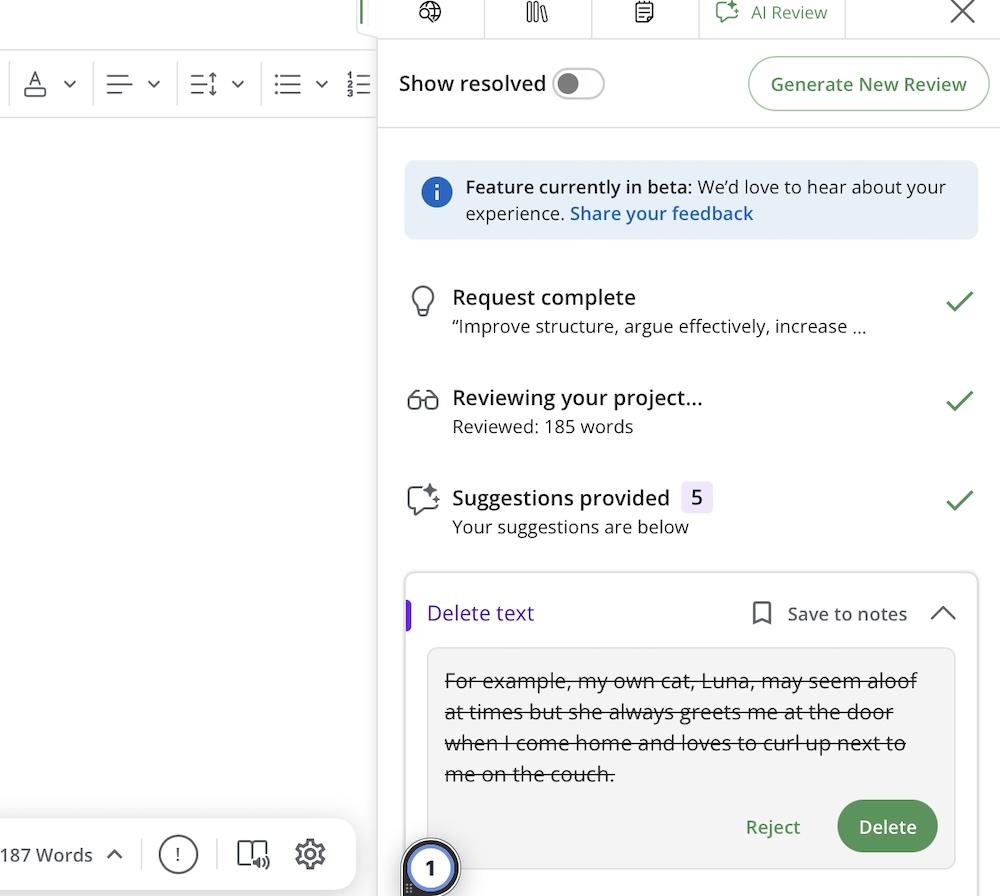
QuillBot’s AI review feature analyzes your text and provides feedback on clarity, tone, and style.
This comprehensive review helps you refine your writing and ensures that content meets high-quality standards.
Who Is QuillBot For?
QuillBot is a versatile writing assistant designed to cater to a broad audience, including writers and editors, students, business owners, and marketers.
Here’s how QuillBot benefits each group:
Writers and Editors
QuillBot’s suite of tools, including the paraphraser, grammar checker, and AI review, helps writers and editors produce high-quality content.
The paraphrasing tool allows for rewriting text to improve clarity and avoid plagiarism, while the grammar checker ensures error-free writing.
The integrations with Microsoft Word, Google Docs, and web browsers streamline the editing process.
This makes it easier for writers to enhance their content without switching between platforms.
Students
Students working on essays, research papers, and assignments can make use of QuillBot, too.
The citation generator simplifies the process of referencing sources in various styles. This makes proper academic formatting a much simpler prospect.
Academic integrity matters and even accidental plagiarism can be devastating. So, the plagiarism checker helps students ensure the originality of their work and avoid issues.
The summarizer aids in condensing lengthy articles and papers into key points. This makes it easier for students to grasp complex information quickly and effectively, too.
Business Owners
Business owners can use QuillBot to write polished emails, reports, and presentations.
The grammar checker and AI review ensure that all communications are clear, professional, and error-free.
They can help with time management as well. Integrated research and project templates shave time off of workflows.
Marketers
Lastly, marketers can use QuillBot to create engaging and persuasive content for blogs, social media, and marketing campaigns.
The paraphrasing and summarizing tools help repurpose content and generate fresh ideas quickly.
You can use it to refine your content for better search engine optimization too.
Add in the translator feature and you have a tool that can help marketers better reach international audiences.
The post QuillBot Review appeared first on Business For AI Guide.
]]>The post AI Studios Review appeared first on Business For AI Guide.
]]>I’ve explored how this platform can accelerate your video projects at scale with its AI-powered text-to-video features. Whether you’re a beginner or a seasoned pro, this review is tailored just for you.
Read on to find out why this might be the only review you need before diving into one of the best AI video tools in USA. Stay tuned for a thorough AI Studios Review.
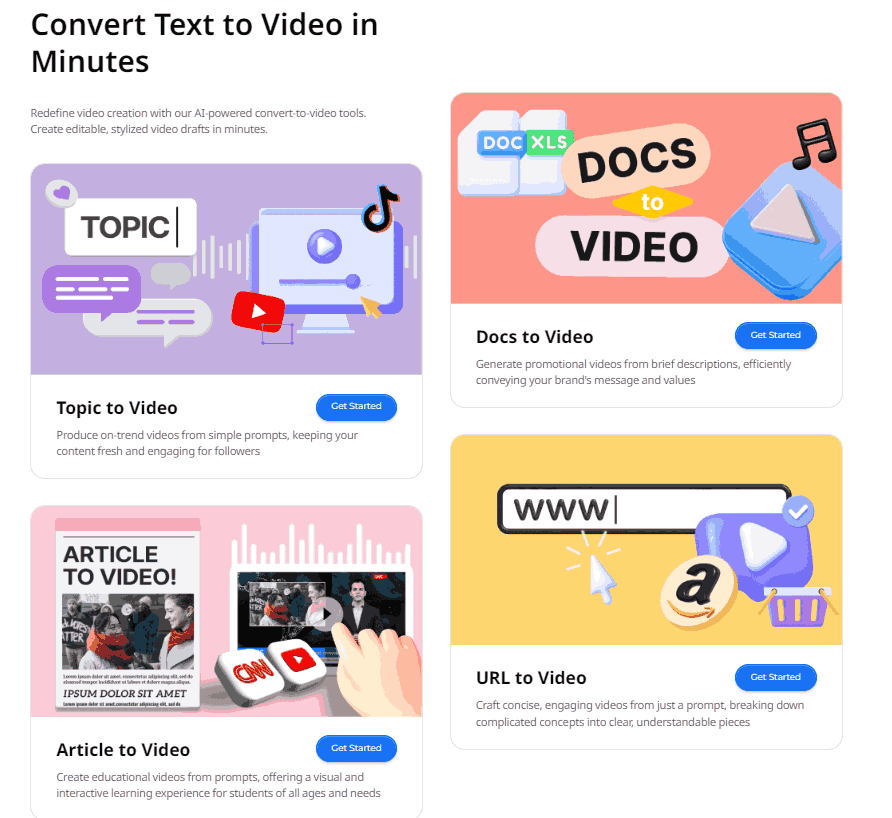
AI Studios Review
AI Studios excels in creating AI-generated videos with ease, ideal for businesses and promotional activities.
The pricing is competitive, providing good value given the extensive range of templates and over 100 AI avatars that enhance video personalization.
Voice cloning and a robust media library further enrich the user experience, allowing for diverse and dynamic content creation. The platform supports 80+ languages, a significant advantage for global reach.
Custom fonts and screen recording are useful features, though more font options would be beneficial. Integration with tools like ChatGPT and advanced data security measures provide peace of mind and seamless workflow integration.
The platform’s resolution at 1080p ensures high-quality output, and the availability of a free trial allows potential buyers to evaluate the tool’s capabilities effectively.
Overall, AI Studios garners an average rating of 4.0/5, making it a highly recommended tool for anyone looking to efficiently produce professional-quality, AI-driven videos.
My Quick Overview – AI Studios Review
Here’s the table detailing various features of AI Studios, their specifics, and my ratings compared to industry standards:
| Feature | Details | My Ratings |
| Best for | Creating AI-generated videos using basic text. | 4/5 |
| Pricing | $30.00 – $225.00 | 3.5/5 |
| Templates | 500+ video templates | 4/5 |
| AI Avatars | 100+ | 4/5 |
| Voice cloning | Yes | 4.5/5 |
| Screen Recorder | Yes | 4/5 |
| Media library | Yes | 4/5 |
| Custom fonts | Yes | 3.5/5 |
| Solutions | Educational Content, Sales/Marketing, Media Content, etc. | 4/5 |
| Duration | 10 minutes – 90 minutes per month | 3/5 |
| Voice-Over/Audio | Yes | 4/5 |
| Languages Supported | 80+ | 4.5/5 |
| Voiceover uploads | Yes | 4/5 |
| Text To Video Generator | Yes | 4.5/5 |
| No of Users | 3 Seats – Unlimited | 4/5 |
| Integration | ChatGPT | 4.5/5 |
| Data Security | Secure Data, Data Encryption, Compliance, Privacy, Controls | 4.5/5 |
| Resolution | 1080p | 4/5 |
| Free Trial | Yes | 4/5 |
| Customer Support | Yes | 3.5/5 |
| Refund Policy | Yes | 3.5/5 |
Detailed Analysis of its Key Features – AI Studios Review
In this AI Studios Review, I’ll provide a detailed analysis of its key features, highlighting why it stands out as one of the best AI tools for video creation.
Key to its excellence is how it integrates content personalization in AI video tools, an innovative approach that significantly enhances user engagement by tailoring content to individual viewer preferences
What is AI Studios Best For?
AI Studios is best recognized for its impressive capabilities in text-to-video transformation, making it particularly well-suited for creating educational content, sales and marketing videos, and media content development.
It streamlines the video production process by allowing users to convert text into videos quickly and efficiently, often in just minutes.
This platform stands out as one of the best AI tool in USA for users who need to rapidly produce high-quality videos for business and promotional purposes without requiring deep technical knowledge or extensive video editing skills.
For those looking to enhance their branding with innovative video content, exploring the AI video branding tools can provide valuable insights and solutions tailored for impactful visual branding strategies.
What is the Pricing of AI Studios?
AI Studios offers three main pricing plans:
- Starter Plan: Priced at $30.00 per month, offering 10 video credits each month, 11 AI avatars, up to 6 scenes per video, and the ability for public uploads.
- Pro Plan: Available at $225.00 per month, which includes 90 video credits per month, 11 AI avatars, support for over 80 languages, and up to 25 scenes per video.
- Enterprise Plan: This comes with custom pricing and is designed for long-term professional use. It includes all the features of the Pro plan, along with custom AI avatars, up to 50 scenes per video, and 24/7 priority support.
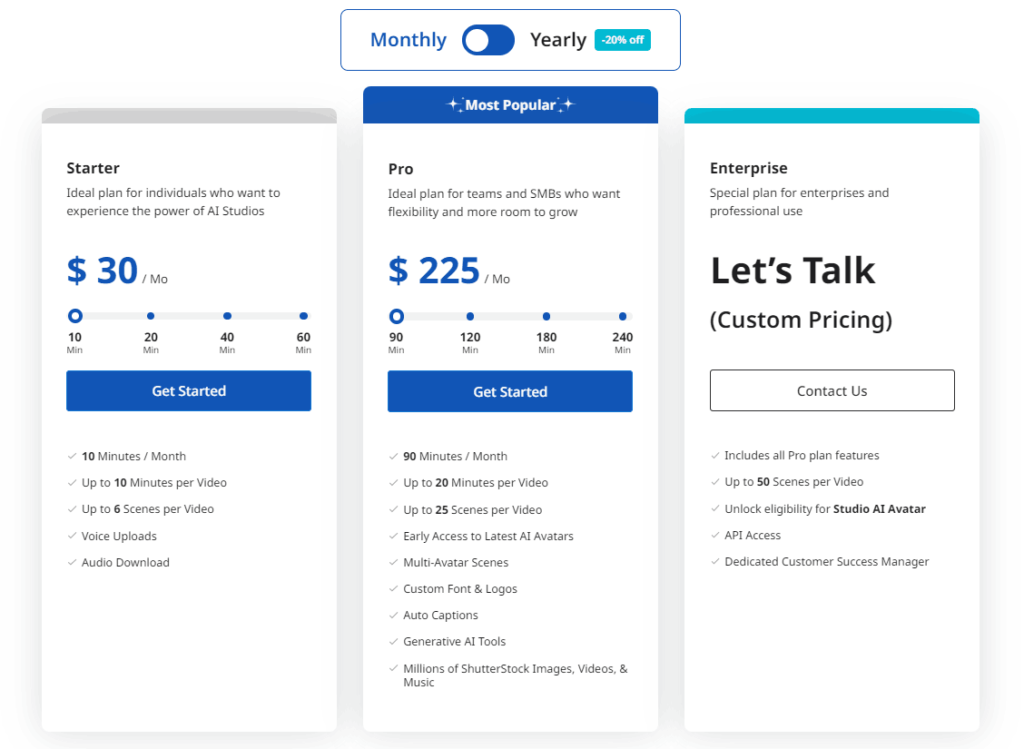
How Many Templates are Available in AI Studios?
AI Studios offers a robust collection of over 500 video templates to cater to various industries, including education, sales, and media. These templates are designed to simplify the video production process, enabling users to create high-quality videos efficiently and effectively.
Whether you are a seasoned content creator or a newcomer to video making, AI Studios provides a wide range of templates to suit different needs and preferences, making it easier to start projects and achieve professional results.
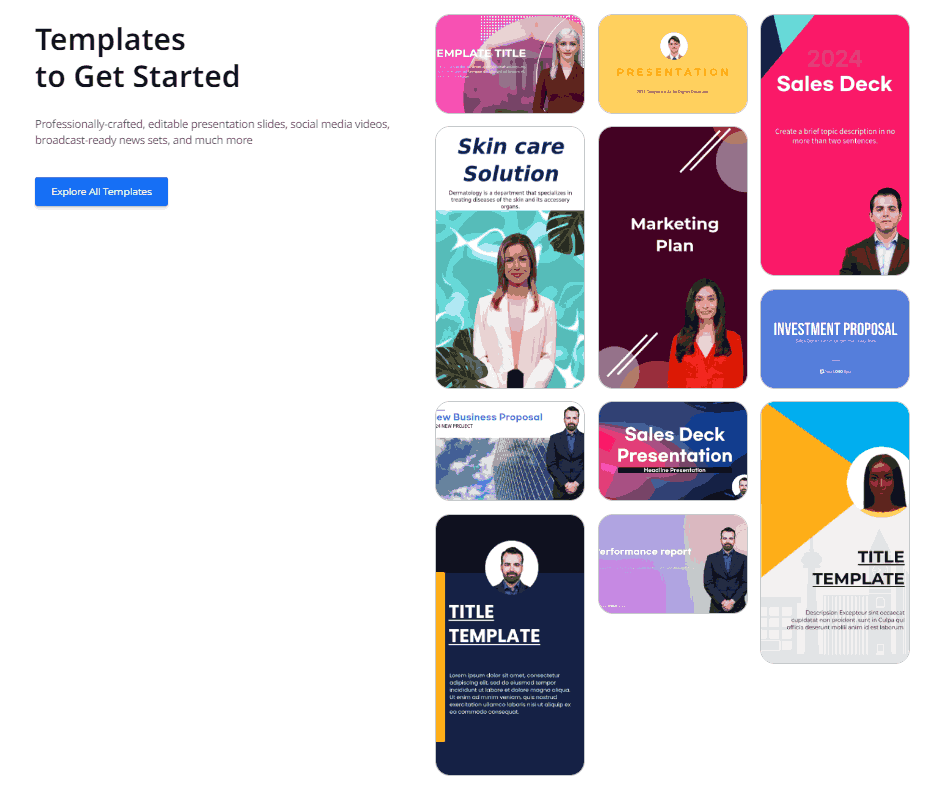
What Solutions does AI Studios offer?
AI Studios leverages artificial intelligence (AI) and machine learning (ML) to grow business through custom AI/ML solutions. These solutions are crafted by highly skilled remote engineers, demonstrating AI Studios’ capability to transform AI into a key business asset.
Their offerings seem to be aimed at enhancing operational efficiencies and innovating processes across various sectors, making AI accessible and useful for companies looking to integrate advanced technology solutions into their workflows.
How to Use AI Studios Voice-Over/Audio?
To use AI Studios Voice-Over/Audio, you need to;
- Start by selecting an AI Avatar and choosing a Text-to-Speech (TTS) language and voice.
- Enter your script into the text box provided.
- Add click-and-drop elements like text, images, videos, and music to enhance the video.
- Click on “Generate” to create your AI video with the selected voice-over/audio in minutes.
AI Studios offers over 100 lifelike AI voices and supports 80+ TTS languages, enabling you to create diverse and realistic voiceovers for your videos.
What Duration is Supported by AI Studios?
AI Studios supports a range of video durations for its users, allowing for video projects that can range from 10 minutes to 90 minutes per month.
This flexibility in duration caters to various needs, whether for quick promotional videos or more extended content, providing users with a versatile tool for their video production tasks.
What Languages are Supported by AI Studios?
AI Studios supports a wide range of languages for its text-to-speech (TTS) capabilities, offering over 80 languages. This diverse linguistic support allows users to create natural-sounding, studio-quality voiceovers for their videos.
The platform includes major languages such as English, Spanish, Mandarin Chinese, Hindi, and Arabic, among many others, catering to a global audience.
This multiple language support is particularly useful for creating localized content across different geographic and cultural contexts, making AI Studios a versatile tool for international video production.
Does AI Studios work as a Text To Video Generator?
Yes, AI Studios operates as a powerful text-to-video generator. It allows users to easily transform text, prompts, blogs, PDFs, PPTs, URLs, or scripts into professional-quality videos.
This feature is particularly advantageous as it eliminates the need for cameras, microphones, or actors, making video production more accessible and cost-effective.
AI Studios streamlines the entire video creation process, enabling users to generate compelling content quickly and efficiently, which is ideal for various applications, including education, marketing, and entertainment.
For those interested in the broader impact of artificial intelligence, AI’s revolution in text editing showcases how AI advancements like Microsoft’s Notepad co-writer feature are transforming traditional editing tasks.
What is the Number of Users in AI Studios?
AI Studios offers a flexible range of user access, starting from 3 seats and extending to unlimited seats. This scalability makes it suitable for small teams and large enterprises, allowing organizations of any size to leverage the platform’s capabilities according to their needs.
What sort of Integration is used in AI Studios?
AI Studios incorporates significant integration capabilities, notably with ChatGPT, enhancing its functionality in the AI video creation space.
This integration facilitates the transformation of textual content into engaging video formats swiftly, leveraging advanced AI models to streamline video production processes.
Such integrations enable AI Studios to support a wide range of use cases, from educational content to marketing and media production, significantly reducing the time and technical expertise required to produce high-quality video content.
Is there any Data Security Policy by AI Studios for its?
AI Studios, powered by DeepBrain AI, takes data security seriously and adheres to robust privacy policies to protect user data. Their approach is designed to ensure the confidentiality, integrity, and availability of data throughout its lifecycle.
The policies will likely include measures like encryption, secure data handling practices, and compliance with relevant data protection regulations to safeguard personally identifiable information and other sensitive data.
Users can review DeepBrain AI’s review on their official website to understand specific measures and commitments related to data security and privacy.
What Resolution is Supported by AI Studios?
AI Studios supports video creation in a range of resolutions, from standard 720p HD up to full 1080p HD. This flexibility allows users to produce efficient content that meets their specific quality requirements, whether for web content that demands faster loading times or high-definition outputs for professional presentations and broadcasts.
The 1080p resolution helps in delivering clear, crisp, and visually appealing videos that can engage and captivate the audience effectively.
Can I use AI Studios for free?
Yes, you can use AI Studios for free through their trial offer, which allows you to create a 1-minute video. You can start making videos right away using a range of templates and styles, and no credit card is required to use the demo. This makes AI Studios an accessible tool for anyone looking to explore video creation without any financial commitment.
How to contact Customer Support of AI Studios?
To contact Customer Support of AI Studios, you should fill out the contact form provided on their website. You’ll need to provide your first name, last name, work email address, phone number, and any comments or questions you have.
After agreeing to the terms of service and privacy policy, you can send your message by clicking the “Send” button, and the AI Studios support team will get back to you as soon as possible.
If you’re looking to automate your YouTube channel using AI, AI Studios offers tools that can help you streamline content creation and distribution.
What is the Refund Policy of AI Studios?
AI Studios offers a refund policy, where customers can contact their support team at support@aistudios.com to request a refund.
The refunds are processed back to the original payment method and typically take about 5-10 business days to appear in your bank account.
Customers are advised to contact their bank if there are any unexpected delays in processing the refund. This policy ensures that if users are not satisfied with the service or have other reasons for discontinuing use, they can receive their money back promptly.
How do I cancel my AI Studios subscription?
To cancel your AI Studios subscription, you need to
- Navigate to the ‘My Profile’ section under ‘Account Settings’ on their website.
- From there, you have the option to Change your Password.
- You can also Cancel or Subscribe to AI Studios within the same section.
How Does AI Studios Work?
AI Studios operates as an intuitive and user-friendly platform that simplifies video creation using advanced AI technology. It is designed to be accessible to users of all skill levels, allowing anyone to produce professional-quality videos without prior experience.
The platform integrates various AI-driven tools that handle everything from video editing to voiceovers, animations, and video captioning and subtitles. Users can easily start projects by choosing from pre-designed templates or customizing their own content.
This all-in-one solution ensures a seamless process for creating engaging and high-quality videos, making it ideal for both personal and professional use.
What is the unique selling point of AI Studios?
Here is a unique selling point of AI Studios:
- Simplification of Video Production: DeepBrain’s AI Studios streamlines the traditional video creation process, making it more efficient and less time-consuming.
- AI-Powered Content Creation: Harnesses advanced AI technology to enhance the quality and creativity of video content.
- Rapid Video Generation: Ability to turn text into professional-quality videos in just minutes, greatly accelerating the production timeline.
What is AI Studios used for?
AI Studios is used for:
- Fast and Efficient Video Production: Quickly create videos from text in just minutes.
- Extensive Language Support: Supports a wide array of languages and voices for text-to-speech capabilities.
- Diverse Range of AI Avatars: Offers a variety of lifelike avatars suitable for different video purposes.
- User-Friendly Interface: Designed for simplicity, allowing easy use without prior technical expertise.
- Customization Options: Provides flexible customization options to tailor videos to specific needs.
- Innovative Technology: Utilizes cutting-edge AI and hyper-realistic AI Avatar technology to redefine video production.
Pros and Cons: A Balanced View of AI Studios
Here is a table highlighting the key strengths and areas for improvement within AI Studios. It allows potential users to weigh their options based on their specific needs and contexts.
Pros
- Quickly transforms text into high-quality videos.
- Offers voiceovers in multiple languages.
- Provides a wide range of lifelike avatars for various use cases.
- Easy to use, facilitating a smooth experience for all users.
- Leverages cutting-edge AI for efficient and creative outputs.
Cons
- New users may need time to familiarize themselves with all features.
- While cost-effective, the premium plans may be pricey for some.
- Requires a stable internet connection for all functionalities.
- Advanced users might find customization options limited.
- Potential bugs and glitches that affect its performance.
How Much Does AI Studios Cost?
Ai Studio offers different costs according to the following plans:
| Plan | Price | Credits | Details |
| Starter Plan | Starting at $30.00 | 10 credits per month | Ideal for individuals or small projects. |
| Pro Plan | Starting at $225.00 | 90 credits per month | Suitable for professionals with higher demands. |
| Enterprise Plan | Custom Pricing | Custom | Designed for large organizations and requires direct contact for pricing. |
Conclusion
AI Studios revolutionizes video production by integrating advanced AI and hyper-realistic avatars, simplifying the creation of high-quality videos.
It’s designed to be intuitive and accessible for all users, regardless of their technical skills, making it a preferred choice for rapid content creation.
The platform supports 80+ languages and offers extensive customization options, catering to a wide audience and various content needs.
Consider reading the detailed AI Studios Review on our website for a more comprehensive understanding of this platform’s capabilities. To explore more about how AI Studios compares to other solutions, check out our comprehensive AI tool reviews in USA.
The post AI Studios Review appeared first on Business For AI Guide.
]]>The post Notion AI Review appeared first on Business For AI Guide.
]]>So when Notion rolled out AI that works inside your docs, connects with your files, and understands your workspace—it had my attention.
Why I Tried Notion AI Instead of Sticking With ChatGPT
Notion wasn’t promising just another chatbot. It pitched itself as an all-in-one assistant that could write, summarize, analyze, and even pull answers from my tools—Slack, Drive, Notion pages—without needing me to copy and paste anything. Add to that real integration with GPT-4 and Claude, and a native workflow inside a tool I already used every day? I had to see if it could actually deliver.
Setup Was Instant and Pricing Was Simple
No new app. No browser extension. Just enable the AI add-on in settings and you’re in. It costs $10 per user per month or $8 if you pay yearly. No tiered features. No bait and switch. One plan. Full access. Once it’s on, you can hit spacebar to prompt the AI, highlight text to ask questions, rewrite content, summarize PDFs, even query across multiple tools at once. It doesn’t just answer questions—it responds with context. That alone made it more useful than 90% of the standalone AI tools I’ve tried.
Where Notion AI Impressed Me Right Away
This wasn’t some generic writing bot. The real magic kicked in when I dropped a 20-page PDF into a doc. Notion AI gave me a summary, action items, and even flagged stats I’d missed. It understood structure. It didn’t hallucinate. I could also ask it to rewrite rough notes in my tone, translate full pages, and summarize meeting transcripts in seconds. It even pulled updates I’d buried in Slack and surfaced them during a project recap. That was the moment I realized—it’s not just smart, it’s aware.
How I Used It in My Real Workflow
- Summarized product specs into client-facing bullets.
- Translated internal docs to Spanish for a global partner.
- Turned chaotic brainstorm notes into a clean to-do list.
- Answered questions using Notion and Drive content at once.
- Rewrote a dry weekly update into something actually readable.
- Explained technical jargon to a non-technical team.
- Filled out a task board automatically based on recurring project themes.
It didn’t just save time. It helped me show up more prepared, faster, and clearer.
Where It Still Misses
Let’s be honest—it’s not perfect. The image generation and flowchart features are early-stage and don’t quite hit the mark. Sometimes the tone in rewrites needs polishing. You’ll also get the occasional off-the-rails response if your workspace is too messy or the question is too vague. And if you’re using the free trial, you’ll run out of credits faster than you think. But none of that broke the workflow. And once you’re on the full plan, it gets better fast.
Security and Data Privacy Are Locked In
I care about data. Notion AI doesn’t use your inputs to train the models. All data is encrypted in transit. On the Enterprise plan, your inputs don’t even get stored with the LLM providers. Permissions can be customized down to a fine level, and it’s fully SOC 2 Type 2 and ISO 27001 certified. In plain English: it’s built for teams that take privacy seriously.
What Makes Notion AI Different From the Rest
Most AI tools need you to feed them context. Notion AI already has it. Because it lives where your notes, tasks, and docs live, it pulls from your existing knowledge base automatically. You’re not switching tabs or trying to explain a project to a bot that wasn’t there for it. It connects to Google Drive, Slack, Jira, Figma, GitHub—you name it. You can search across them. Ask questions across them. And all of that happens inside one doc. You stay in flow. That’s what makes it powerful.
The Docs Feature That Actually Makes Writing Easier
Notion Docs are built differently. It’s not just another word processor. You can layer in toggles, checklists, videos, databases, and even live charts inside a single page. That means you’re not switching tools when your doc needs more than text.
The standout? How tightly Notion AI integrates into these docs. You can generate content, summarize sections, clean up your writing, and even change tone—all without leaving the page. It becomes less about writing and more about shaping a living doc that keeps up with your thinking.
Wikis That Don’t Get Outdated in a Week
Most wikis fall apart because they’re hard to keep updated. Notion makes it easier by turning pages into searchable, editable, collaborative hubs. You can organize by team, topic, or workflow and link everything together with zero effort.
Pair that with Notion AI, and now your wiki isn’t just a file dump. You can ask questions and actually get answers. Ask AI to summarize a page, explain a term, or pull context from across your workspace. It’s like giving your company brain a search bar that finally works.
Projects That Stay Out of Spreadsheet Hell
Managing projects in Notion feels more like building a system than following one. You can track tasks, assign owners, view timelines, and even connect goals to deliverables—all in one place. But here’s what makes it different: the automation.
With AI and synced databases, you can auto-generate action items, summarize updates, and even fill out recurring tasks using context from previous projects. You’re not just tracking work. You’re speeding it up without extra tools or manual updates.
Who Should Actually Use This Tool
If you’re already using Notion, this is a no-brainer. But even if you’re not, here’s who should seriously consider it:
- Writers and marketers: Draft, edit, rewrite, or localize content in your brand voice.
- PMs and team leads: Turn meeting notes into tasks, create updates, track blockers.
- Founders and execs: Get fast summaries, prep documents, and stay aligned without needing extra apps.
- Designers and engineers: Explain specs, auto-document, and track feedback in context.
If you’re doing deep work and want fewer interruptions, this tool will clean up your process fast.
Pricing Breakdown
- $10 per user per month
- $8 per user per month if billed annually
- Free trial available, but limited usage
- One price gives you access to all AI tools—no tier upgrades, no feature gating
Teams get unlimited use for all workspace members (guests excluded). Enterprise customers get added security controls and zero-retention features.
Final Verdict
Notion AI isn’t trying to be the flashiest tool in your stack. It’s trying to be the one that actually makes your day smoother. And it succeeds.
I’ve cut writing time by more than half, stopped bouncing between tools, and started using my notes the way they were meant to be used—collaborative, searchable, and living. For me, it’s not just an AI assistant. It’s part of how I work now. And I don’t plan on going back.
The post Notion AI Review appeared first on Business For AI Guide.
]]>The post Ledger Wallet Review appeared first on Business For AI Guide.
]]>In 2021, $3.2 billion worth of crypto was stolen, a 516% rise from 2020. To be clear, that’s from theft alone and doesn’t include losses due to scams and phishing where the victims exposed their own data.
With crypto heists on the rise, more and more folks are opting to pluck their private keys from the internet entirely and lock them away in a cold wallet. One of the more popular options is Ledger, a slick USB-like device with a tiny screen and surprisingly versatile functionality.
So what is Ledger? How does it all work? Is it beginner friendly? And do cold wallets attract hackers too? Find out the answers to all your questions in our Ledger review.
What is Ledger?
Founded in 2014, French company Ledger has become one of the most popular cold wallet vendors in the cryptocurrency community.
Once you’ve loaded up your Ledger with your private keys, it’s up to you to store the device in a safe place: a safe, safe deposit box, etc. Ledger will even sell you a Cryptosteel Capsule for $99 so you can bury it in the backyard.
How does Ledger work?
As you can see below, the slick little Ledgers resemble USB sticks and even feature tiny, helpful displays. Ledger wallets connect to your PC or mobile device via USB. And the top-trim Nano X can even go wireless with Bluetooth.

Once your new Ledger arrives, your first step is to connect it to your desktop or mobile device. At that point, the wallet will wake up and prompt you to establish a four-digit PIN. You need to enter this PIN every time you use or sync your wallet, so make it memorable!
When you’ve chosen a PIN, your Ledger device gives you a 24-word recovery phrase (e.g., “smith, twelve, sword, mall,” etc.). Store this in a safe offline location. Losing both your PIN and your recovery phrase means you’re locked out for life.
Ledger also prompts you to get Ledger Live. Ledger Live is available on desktop, iOS and Android.
Ledger Nano X users can connect via Bluetooth. But unfortunately, Nano S users can use iOS Ledger Live only in limited “Consultation Mode.” So if you’re intent on using Ledger Live on a mobile Apple device, consider ponying up for the Nano X. (I’ve got a full breakdown below.)
Once you’re connected, you can use Ledger Live to transfer your keys, buy or sell crypto through Coinify, swap crypto through Changify and even dabble in some staking and lending.
When you’re done syncing and swapping, you simply need to disconnect your Ledger and store it safely (and separately from your recovery phrase!).
What are my options with Ledger?
Ledger currently sells two cold wallets, with one more on the way.
- The Ledger Nano S ($59) is Ledger’s standard, best-selling cold wallet and stores up to three apps at a time.
- The Ledger Nano X ($149) is Ledger’s Rolls Royce, featuring Bluetooth connectivity, a larger, more legible screen and can host up to 100 apps at once.
- The Ledger Nano S Plus ($79) is coming soon and will feature management of non-fungible tokens, as well as storage space for up to 100 apps at once.
These “apps” I speak of require some explanation. See, each crypto asset has its own private key. So Ledger needs a unique application to manage each one. Without the crypto’s corresponding app installed on the Ledger wallet, transactions cannot occur.
With the Nano S, you can store keys for over 5,500 coins and tokens at once — but you can manage only three at once — the three for which you have apps installed.
So, if for example you have applications for BTC, ETH and DOGE installed, you’ll have to uninstall one of them and install the XLM app before moving XLM.
Ledger has a full breakdown of how apps work (and why they’re necessary) here. The apps install and uninstall pretty quickly, so they’re not too bad of an inconvenience.
But needless to say, if you plan to frequently move around a wide variety of cryptos between your Ledger and Ledger Live, the increased app capacity of a Nano X or Nano S Plus will pay for itself in speed and convenience.
Main features of Ledger Wallets
Ledger Live
As mentioned, Ledger Live offers an impressively fleshed-out companion app to your Ledger wallet, It allows you to sync your keys, buy and sell crypto, and even stake and lend all in one place.
Optional Bluetooth
The Ledger Nano X isn’t the only Bluetooth-enabled cold wallet, but it’s among one of the safest. A wallet that offers Bluetooth without your having to worry about safety deserves brownie points.
Storage for up to 5,500 coins and tokens
If you’re the type of HODLer (holding on for dear life) who likes to scoop up tons of obscure altcoins before they get big, then Ledger may be the wallet for you. All Ledger wallets support up to 5,500 coins and tokens.
Closed-source, in-house OS
Like Apple products, Ledger wallets operate using a closed-source, proprietary OS.
Now, if you like to tinker with your wallet software and engage with the programmer community, that could feel like a limitation. But for most of us, a closed OS lends stability and security.
Usability and Ledger academy
Perhaps the biggest contributor to Ledger’s popularity is just how easy the wallets are to use. From initial setup to routine syncs, everything feels slick and intuitive.
And for those who need a little help, Ledger curates a vast learning library called Ledger Academy, where you can learn all about how Ledger, blockchain and even crypto as a whole work.
I always like seeing big learning libraries on crypto platforms because it shows that the creators believe in the mission of crypto and cater to a wide audience of varying crypto fluency.
How is Ledger’s customer service?
According to an insider, Ledger recently staffed up its customer support team and it absolutely shows. After submitting my query via live chat, I heard back from a live rep within 10 minutes who answered my questions thoroughly and instantaneously.
Even still, you may never have to engage with a live rep in the first place. I say that because Ledger’s glossary of technical support pages is staggering. I mean, just look at the number of pages it has on the topic of Metamask alone:

Each article is detailed, concise and well written. I’ve never seen such an extensive library of technical FAQ pages, not even on a major exchange. And don’t forget the general knowledge library found in Ledger Academy.
Even without phone support, this is a seriously impressive amount of customer service and support for a cold wallet maker to offer.
Is Ledger secure?
Even though cold wallets are inherently safe by virtue of being disconnected from the internet, Ledger still keeps a team of hackers on retainer (Donjon Labs) to try countless angles of attack. You can even read the hackers’ blog to see everything they’ve tried (fault attacks, side channel, etc.).
As a result of the hackers’ “failure,” Ledger wallets have achieved an Evaluation Assurance Level (EAL) of 5+, the pinnacle rating for computer security.
Ledger wallets have never been hacked, but Ledger’s company servers have. In December 2020, a data dump exposed over one million Ledger user names, email addresses and phone numbers. In the chaos that ensued, countless users were phished, scammed, even threatened.
Some Ledger users even received phony replacement wallets in the mail, wrapped in legit-looking packaging and accompanied by a fake apology letter. Thankfully, Reddit user u/jjrand exposed the scam, and Ledger has added it to its running list of ongoing scam attempts.
Key takeaway? Ledger and Ledger Live seem perfectly safe, but the sharks are always circling — so be vigilant.
Ledger Wallet pros and cons
Pros
- Excellent value: The entry-level Nano S costs just $59, roughly half its competitor’s starter price.
- Versatile companion app: Ledger Live allows you to buy, sell, swap, stake and even lend crypto via third party integration with Coinify and Changify.
- Simple and usable: Ledger keeps things simple and beginner friendly with an intuitive interface and streamlined workflow.
- Optional Bluetooth: The top-trim Ledger Nano X allows Bluetooth connectivity, lending extra convenience.
- Supports 5,500+ coins and tokens: Ledger supports most coins and tokens in existence, as opposed to competitors that are limited to “just” 1,000.
- Extensive FAQs and learning library: Ledger’s glossary of educational content and technical FAQs is staggeringly vast.
- Rapid customer support: I was able to connect with a friendly and helpful human rep via live chat within 10 minutes.
Cons
- Nano S is limited to three apps: Ledger “apps” enable use of your private keys — not just storage — and the Nano S can host only three at once. Not a deal breaker but an inconvenience.
- Nano S limited to “Consultation Mode” on iOS mobile: Oddly, the Nano S runs only a limited “Consultation Mode” on mobile Apple devices.
- Closed-source OS: Though stable and secure, a closed OS means no tinkering with your wallet’s code.
- Popularity attracts scammers: As showcased by the 2020 data heist, Ledger users have a target painted on their back and need to be extra vigilant.
- It’s still a cold wallet: If you lose your physical device and your 24-word recovery key, not even the company’s superb customer service team can help you save your crypto.
Who is Ledger best for?
If you’re considering the use of a cold wallet to distance yourself from hackers, Ledger is an excellent all-around choice. The wallets are affordable, secure, well supported and friendly to new and advanced users alike.
That being said, cold wallets aren’t for everyone. If you think you’re more likely to lose your wallet than to get hacked, staying “hot” is actually the safer option.
The post Ledger Wallet Review appeared first on Business For AI Guide.
]]>